Web User Interfaces
SFTPGo provides two web interfaces, both available with dark and light themes.
WebAdmin
The WebAdmin UI allows administrators to create and manage users, groups, virtual folders, event rules, and other server resources.
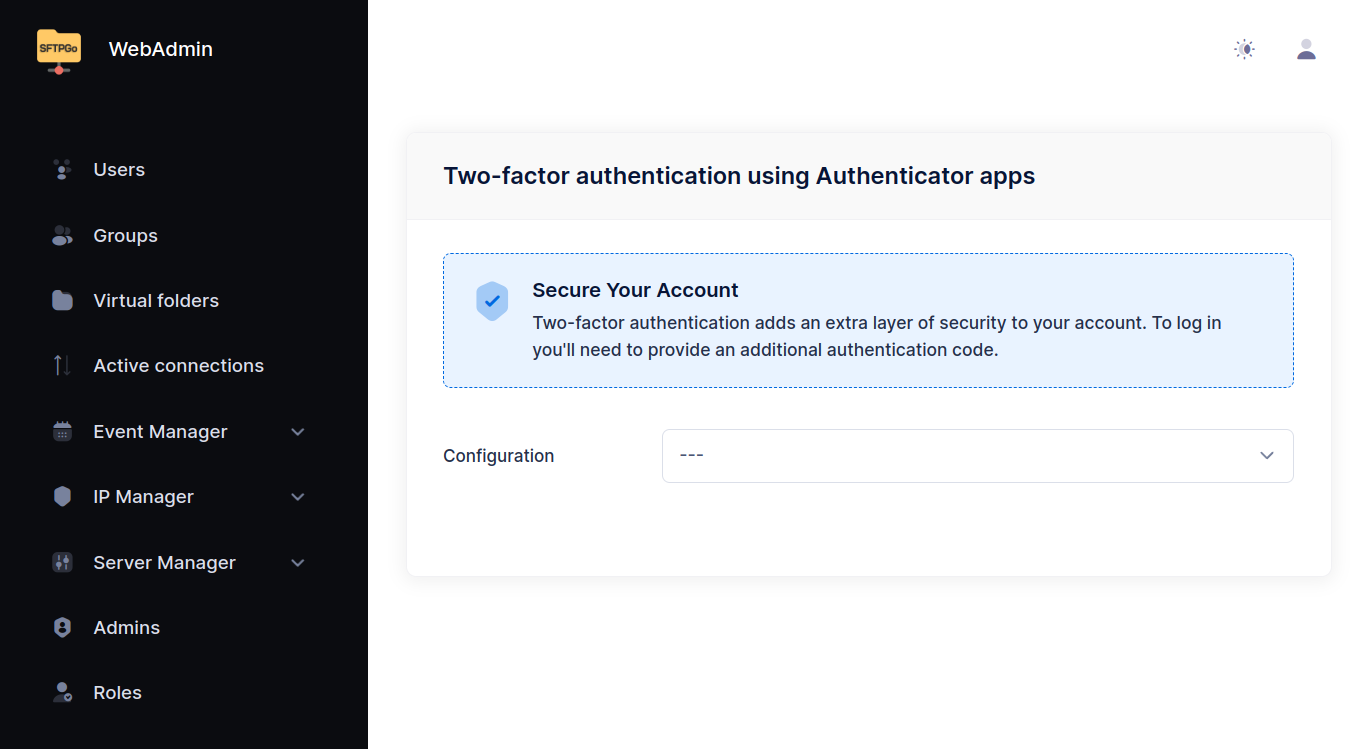
With the default configuration it is served on port 8080: http://127.0.0.1:8080/web/admin from a browser running on the server itself, http://<server_address>:8080/web/admin from anywhere else, because the binding listens on all network interfaces. Network access covers ports, interfaces and reverse proxies.
On first access (when no admin exists in the data provider), SFTPGo presents a setup screen to create the initial admin account. You can also pre-create an admin by loading initial data or by setting the environment variables SFTPGO_DEFAULT_ADMIN_USERNAME and SFTPGO_DEFAULT_ADMIN_PASSWORD (with create_default_admin enabled in the data provider configuration).
Until an admin account exists, the setup screen is available to anyone who can reach the WebAdmin. Set an installation_code in the setup configuration to require a shared code before the first account can be created.
WebClient
The WebClient UI gives end users a browser-based file manager. Users can browse and manage their files, change credentials, and configure two-factor authentication.
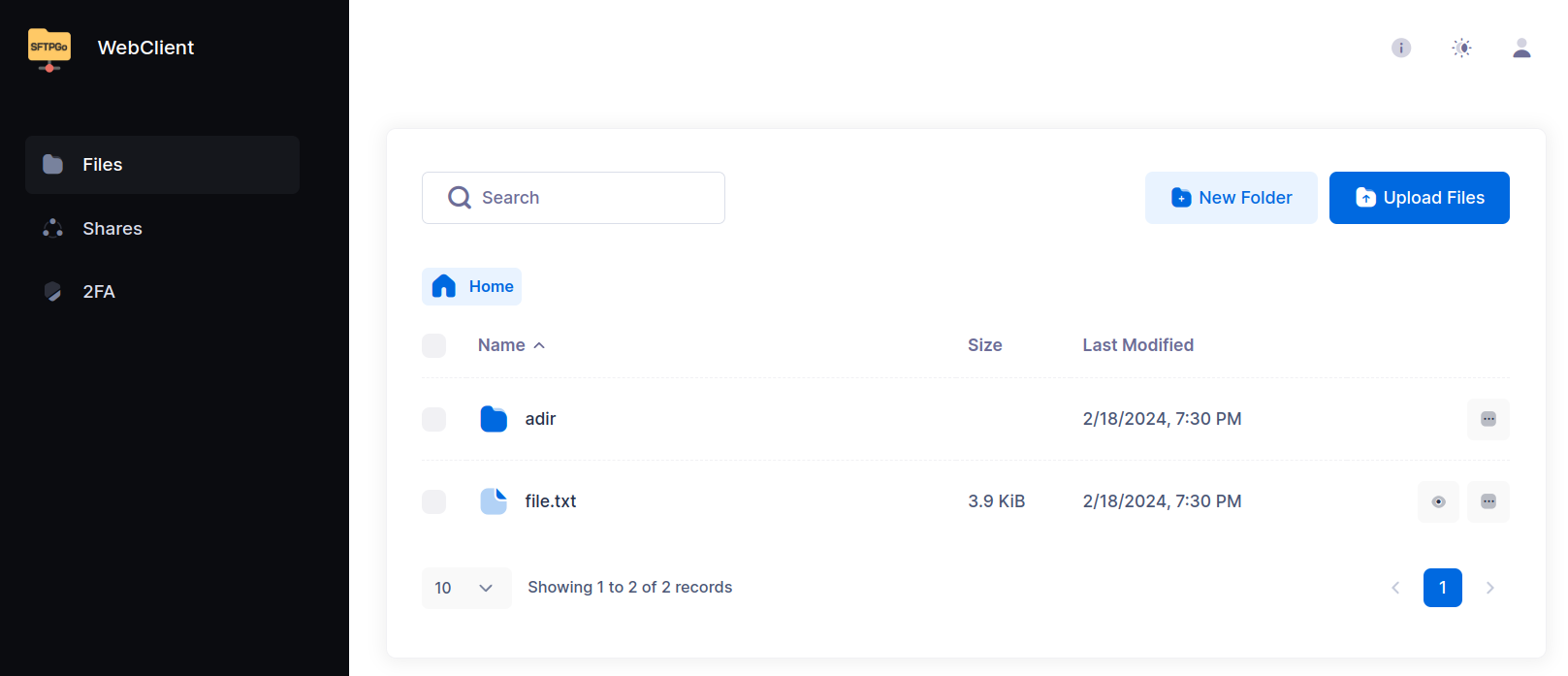
It is served by the same binding as the WebAdmin, at http://127.0.0.1:8080/web/client with the default configuration.
Key capabilities:
- File management — Upload, download, rename, delete, and create directories. Multiple files or folders can be downloaded as a single ZIP archive (non-regular files such as symlinks are silently skipped).
- File integrity — Compute the SHA-256 hash of a file on demand, copy it, or download a checksum list verifiable with standard tools. See File integrity below.
- Sharing — Create HTTP/S links to share files and folders externally, with optional password or email-based authentication, IP restrictions, download/upload limits, and automatic expiration.
- Credentials — Change password and manage public keys (public key management can be disabled per-user via permissions).
- Two-factor authentication — Set up TOTP-based 2FA, compatible with Microsoft Authenticator, Google Authenticator, Authy, and similar apps.
Disabling the WebClient
The WebClient can be disabled:
- Globally — Set
enable_web_clienttofalsein thehttpdbinding configuration. - Per-user — Add
HTTPto the user's denied protocols list.
File integrity
Compute the SHA-256 hash of stored files on demand, on any storage backend. For encrypted storage the hash is taken on the file content as the user sees it.
- Single file — Choose Compute hash from the file actions menu. The dialog shows the hash; copy it or download it as
SHA256SUMS.txt. - Multiple files — Select files and choose Compute hash from the bulk actions menu to download one
SHA256SUMS.txtcovering the selection.
SHA256SUMS.txt is in the standard GNU coreutils format and verifies with common tools:
sha256sum -c SHA256SUMS.txt
shasum -c and rclone --checkfile accept it as well. The single-file Copy button copies the same hash filename line (hash, two spaces, name), so the clipboard value is directly checkable. Use it to confirm a file after an upload or download, to give a recipient a checksum, or to check a set of files against a local manifest.
 Computing a hash reads the whole file, so it counts as a download: it uses the user's download quota and bandwidth limits, requires the
 download permission, is written to the transfer log, and triggers download event rules — once per file in a multi-file selection.
 On cloud storage the read is billable egress. Cancelling a running computation stops the server-side read; bytes already read are still billed.
Network access
The WebAdmin, the WebClient and the REST API are served by the httpd service. Each of its bindings defines a port, the network interfaces to listen on, and which of the three it serves. With the default configuration a single binding serves all three on port 8080 on every interface; set address to listen on one interface only, for example 127.0.0.1 to accept local connections. See the bindings section of HTTP server for the full parameter list.
Serving the interfaces on separate bindings
Because each binding enables the WebAdmin, the WebClient and the REST API independently, the administrative interface and the end-user interface can be published on different ports and restricted differently. To serve the WebClient on every interface while keeping administration reachable from the server itself only:
# Binding 0: WebClient and REST API, all interfaces
SFTPGO_HTTPD__BINDINGS__0__PORT=8080
SFTPGO_HTTPD__BINDINGS__0__ENABLE_WEB_ADMIN=false
# Binding 1: WebAdmin, local connections only
SFTPGO_HTTPD__BINDINGS__1__PORT=8081
SFTPGO_HTTPD__BINDINGS__1__ADDRESS=127.0.0.1
SFTPGO_HTTPD__BINDINGS__1__ENABLE_WEB_CLIENT=false
Administrators then open http://127.0.0.1:8081/web/admin through an SSH tunnel, a VPN, or a jump host, and the WebAdmin has no presence on the binding exposed to end users.
Environment variables cover up to ten bindings and the configuration file has no limit; see Environment variables for how the SFTPGO_HTTPD__BINDINGS__<n>__* names map to the configuration file.
The example leaves the REST API enabled on both bindings: enable_rest_api covers the admin and the user API together, and admin endpoints require an admin token. Set it to false on the binding serving end users when no client needs the user API.
hide_login_url removes the link to the client login page from the admin login page and the other way round, so a binding does not point at an interface it does not serve.
Reverse proxies and load balancers
The web interfaces run behind a reverse proxy, a CDN, or an HTTP load balancer. The items below make SFTPGo aware of how the proxy forwards requests, so that the features depending on the client address and on the external URL keep working. The client address applies to every deployment; the others depend on how the proxy is configured.
This section covers the httpd service. SFTP and FTP are not HTTP: they reach SFTPGo directly or through a TCP-level proxy, configured in the common section (see proxy_protocol modes).
Client addresses. The proxy is the client SFTPGo sees on every request. Declare the addresses it connects from and the header that carries the original one:
SFTPGO_HTTPD__BINDINGS__0__PROXY_ALLOWED="10.0.0.0/24"
SFTPGO_HTTPD__BINDINGS__0__CLIENT_IP_PROXY_HEADER="X-Forwarded-For"
The header is read only from the listed addresses, so a client connecting to SFTPGo directly cannot choose the address SFTPGo records. When several proxies are in the path, X-Forwarded-For carries a chain of addresses and client_ip_header_depth selects which one to trust, counting from the right. The client address is what brute force protection, rate limiting, IP lists, per-user IP filters and the audit log all work on, so it is worth configuring before publishing an instance.
TLS terminated at the proxy. When the proxy serves HTTPS to clients and plain HTTP to SFTPGo, declare the header it adds so that generated absolute URLs use https:// and cookies carry the Secure flag:
SFTPGO_HTTPD__BINDINGS__0__SECURITY__ENABLED=true
SFTPGO_HTTPD__BINDINGS__0__SECURITY__HTTPS_PROXY_HEADERS__0__KEY="X-Forwarded-Proto"
SFTPGO_HTTPD__BINDINGS__0__SECURITY__HTTPS_PROXY_HEADERS__0__VALUE="https"
Skip this when the binding has its own certificate and the proxy connects to it over HTTPS.
Host name. Have the proxy forward the original Host header, or list the header that carries it in hosts_proxy_headers, typically X-Forwarded-Host. allowed_hosts restricts the host names a binding answers on. WebDAV COPY and MOVE need the original host name: see Reverse proxy. Both settings live in the security block of the binding.
Public links. Share links are built from the URL the browser used. Set base_url on the binding to the external URL when the proxy rewrites it.
Sub-path. To serve the interfaces under a path prefix instead of at the root, set web_root to it, for example /sftpgo, and have the proxy forward the prefix unchanged.
Large uploads. Proxies often cap the request body size and buffer the whole body before forwarding it. Raise the cap and turn off request buffering, or set upload_chunk_size to enable TUS so that the WebClient splits each file into chunks that fit under the cap. With several instances behind a load balancer, chunked uploads require session affinity.
Health checks. Every HTTP binding answers GET /healthz with ok and without authentication, which suits load balancer health checks. Requests to it go through the connection limits, the rate limiters and the IP lists like any other request, so include the address the checks come from when an allow list is enabled. The telemetry server exposes the same endpoint without those checks.
TCP-level proxies. A proxy that forwards the TCP connection instead of the HTTP request cannot add headers. Enable proxy_protocol in the common section and set proxy_mode to 1 on the binding to take the client address from the PROXY protocol rather than from a header.
Running SFTPGo behind Cloudflare is a worked example of this configuration.
Security
Authentication
Both interfaces support:
- Username and password login.
- OpenID Connect (SSO) — Integrate with external identity providers (Microsoft Entra ID, Google, Keycloak, Okta, etc.). See OpenID Connect.
- Two-factor authentication — TOTP-based, configurable for both admin and user accounts.
Login methods can be selectively enabled or disabled per binding via the disabled_login_methods configuration parameter.
HTTPS and mutual TLS
The web interfaces can be served over HTTPS. For each binding, you can:
- Enable HTTPS by providing a certificate and key file.
- Require mutual TLS (client certificate authentication) in addition to standard credentials.
- Configure the minimum TLS version and allowed cipher suites.
Certificates can be automatically managed via the built-in ACME protocol (Let's Encrypt).
Content Security Policy
SFTPGo supports strict Content Security Policies — neither unsafe-eval nor unsafe-inline are required. Configure CSP and other security headers in the security section of the httpd configuration.
Internationalization
SFTPGo uses the i18next framework for internationalization. The following languages are supported: English, Italian, German, French, Spanish, Hungarian, and Chinese (Simplified).