Recycle Bin
This tutorial shows how to configure a Recycle Bin, where files are copied to a separate folder before being overwritten or deleted. An automatic retention policy cleans up the recycle folder periodically.
This approach uses two rules:
- A pre-upload / pre-delete rule that copies the file to
/recyclebefore the operation proceeds. - A scheduled rule that cleans up files older than a configurable threshold from
/recycle.
Step 1: Create a Copy to Recycle Action
From the WebAdmin, expand the Event Manager section, select Event actions and add a new action.
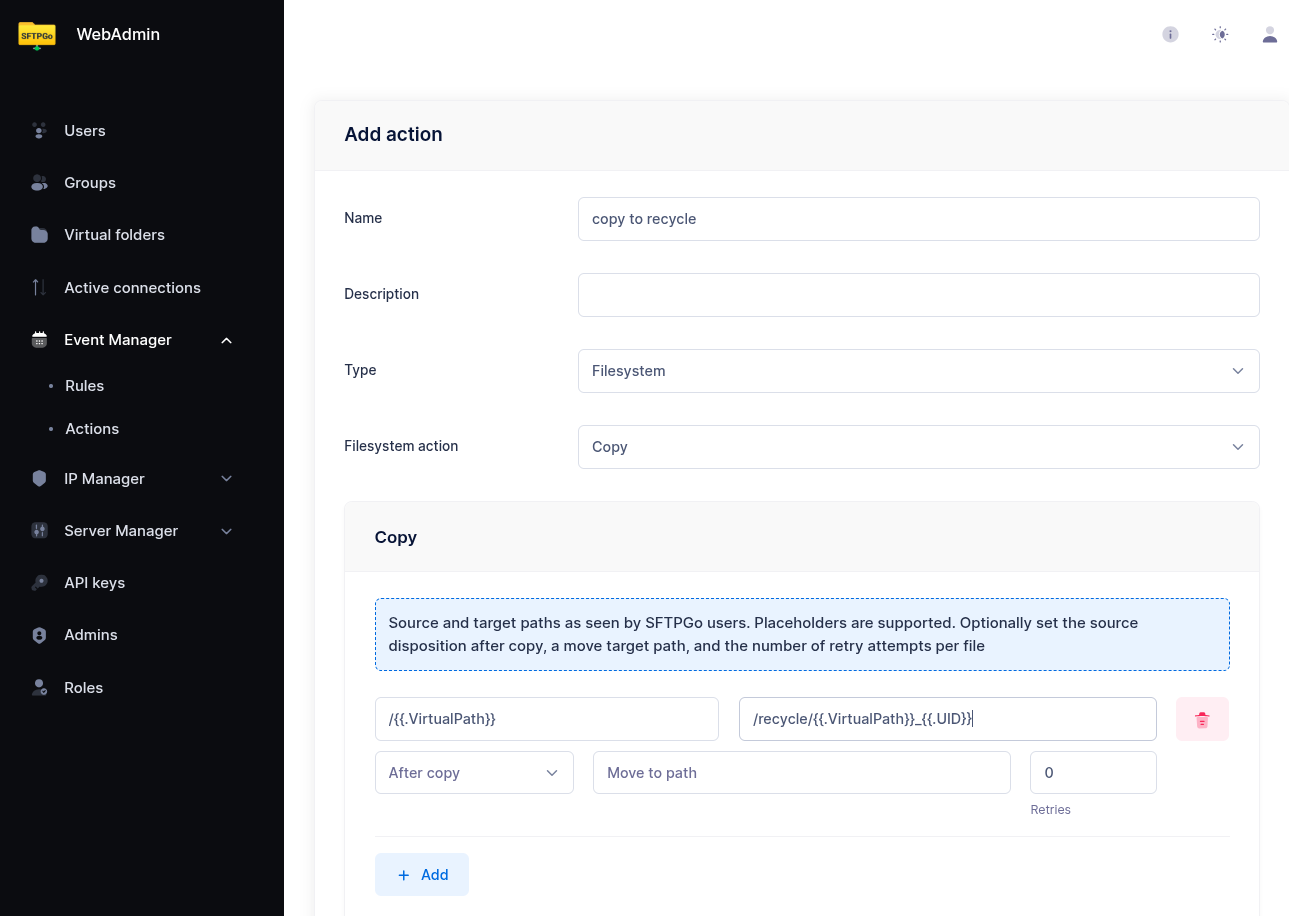
Create an action named copy to recycle, set the type to Filesystem, and choose Copy as the filesystem action.
Add a copy entry:
- Source:
/{{.VirtualPath}} - Target:
/recycle/{{.VirtualPath}}_{{.UID}}
The {{.UID}} placeholder appends a unique event identifier to the filename, ensuring that multiple versions of the same file do not overwrite each other in the recycle folder. For example, deleting /reports/q1.csv produces a recycle copy named /recycle/reports/q1.csv_<unique-id>.
Step 2: Create a Pre-Upload / Pre-Delete Rule
Now select Event rules and create a rule named copy_to_recycle.
- Trigger: Filesystem events
- Events:
pre-upload,pre-delete
The rule triggers before the upload or delete operation, so the current version of the file is still available to be copied.
Conditions
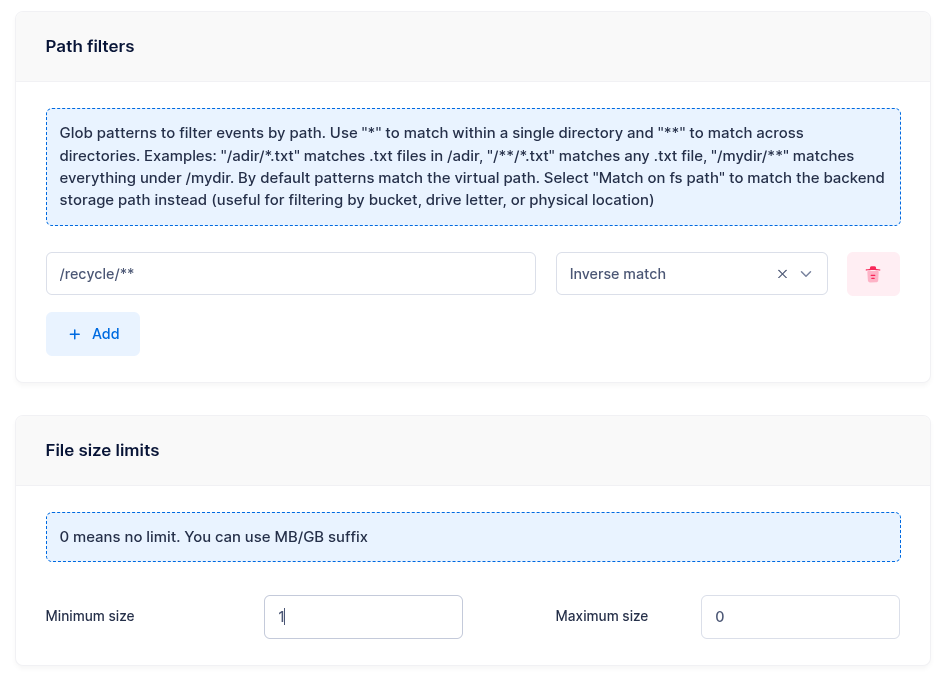
Add a path filter to exclude the recycle folder itself — otherwise, deleting files from the recycle folder would trigger another copy, creating an infinite loop:
- Pattern:
/recycle/** - Inverse match: enabled
This means "match all paths except those under /recycle/".
Set a minimum file size filter to 1 byte. This serves two purposes: it skips empty files on delete, and — more importantly — it detects overwrites on pre-upload. When a user uploads a file that already exists, the pre-upload event fires with the size of the existing file. A minimum size of 1 ensures the rule only triggers when there is an existing file to preserve (size > 0), so new uploads to a path that doesn't exist yet are not affected.
Actions
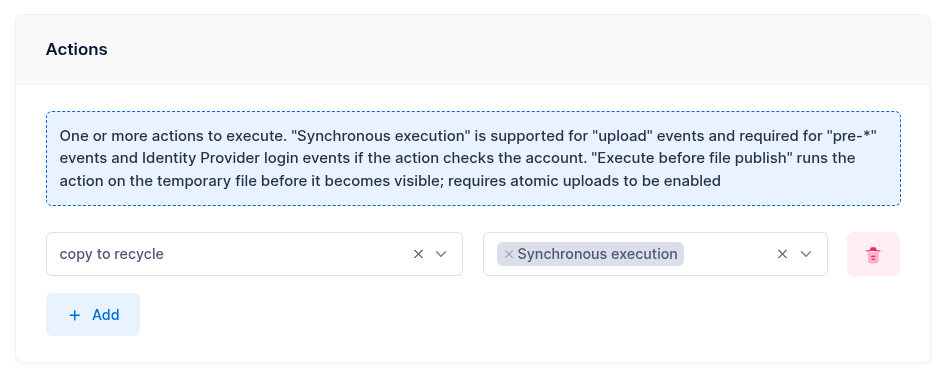
Select the copy to recycle action and enable Synchronous execution.
 Synchronous execution is required. The copy must complete before the upload or delete operation proceeds. Without "Synchronous execution", the original file might be overwritten or deleted before the copy finishes.
Step 3: Create a Retention Policy for the Recycle Folder
To prevent the recycle folder from growing indefinitely, create a scheduled rule that automatically deletes old files.
Create a Retention Action
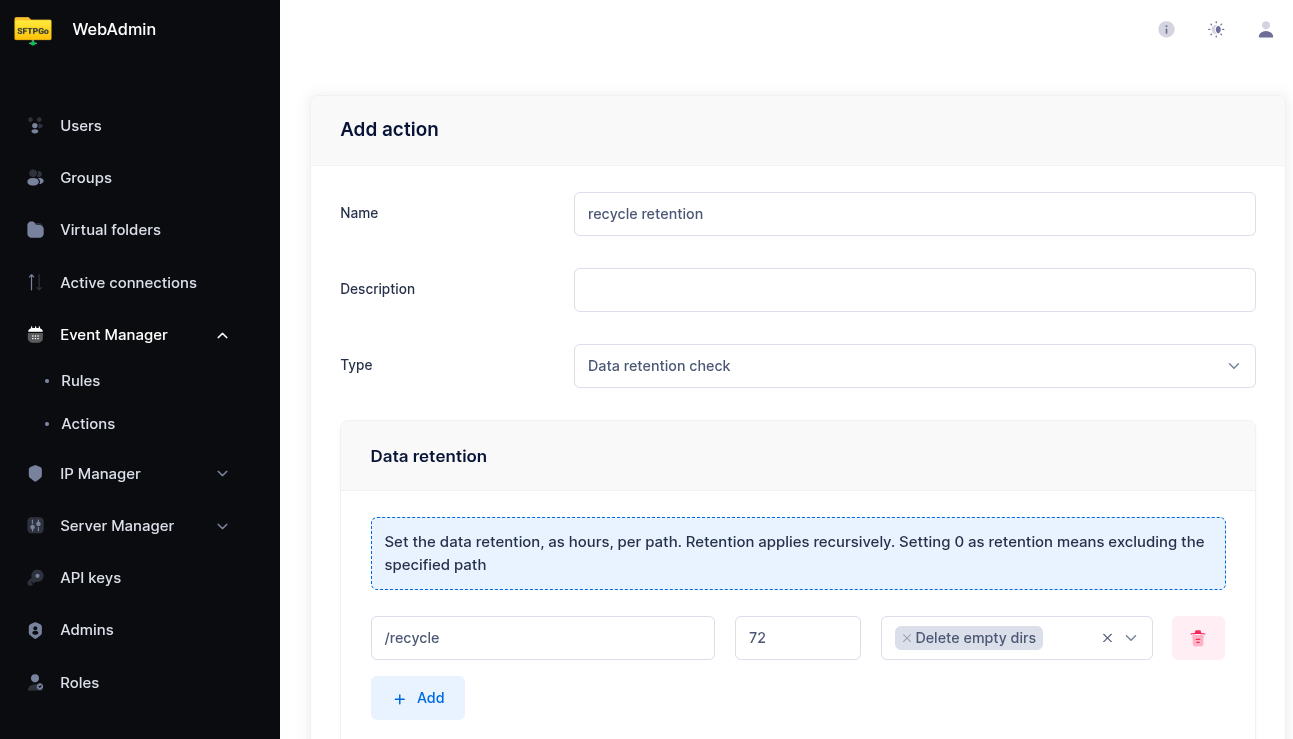
Create a new action named recycle retention, set the type to Data retention check.
Add a retention policy:
| Path | Retention (hours) | Delete empty dirs |
|---|---|---|
/recycle |
72 | Yes |
This deletes files older than 72 hours (3 days) from the /recycle folder and removes any empty subdirectories left behind.
Create a Scheduled Rule
Create a rule named recycle_retention:
- Trigger: Schedule
- Schedule: Daily at 01:00 UTC (hour
1, day of week*) - Actions:
recycle retention
How It Works in Practice
- A user deletes
/reports/q1.csv. - The
pre-deleterule fires and synchronously copies the file to/recycle/reports/q1.csv_<unique-id>. - The delete operation proceeds —
/reports/q1.csvis removed. - The file remains in
/recyclefor 72 hours. - The nightly retention job cleans up files older than 72 hours.
The same flow applies to uploads that overwrite existing files — the pre-upload trigger saves the current version before it is replaced.