Daily Backups
You can schedule SFTPGo data backups (users, folders, groups, admins etc.) on a regular basis, such as daily, and receive an email notification with the result.
Prerequisites
We will use an email action for the notification, so make sure you have a working SMTP configuration. You can configure it using environment variables:
SFTPGO_SMTP__HOST="your smtp server host"
SFTPGO_SMTP__FROM="SFTPGo <sftpgo@example.com>"
SFTPGO_SMTP__USER=sftpgo@example.com
SFTPGO_SMTP__PASSWORD="your password"
SFTPGO_SMTP__AUTH_TYPE=1 # change based on what your server supports
SFTPGO_SMTP__ENCRYPTION=2 # change based on what your server supports
 The SMTP server can also be configured directly through the WebAdmin UI by navigating to Server Manager > Configurations > SMTP.
Step 1: Create a Backup Action
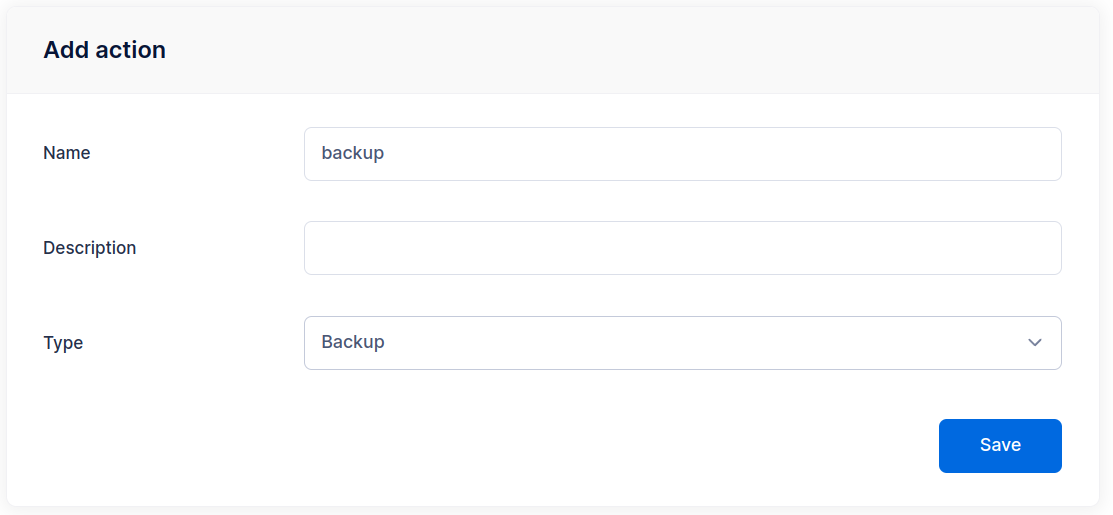
From the WebAdmin, expand the Event Manager section, select Event actions and add a new action.
Create an action named backup and set the type to Backup.
Step 2: Create a Notification Action
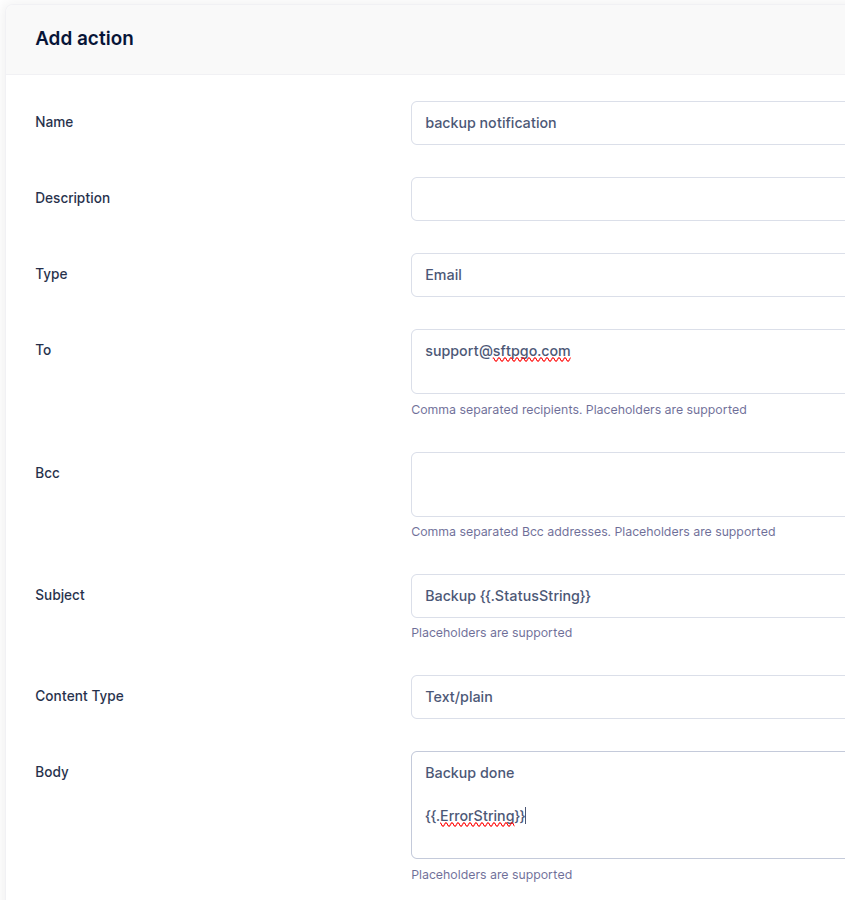
Create another action named backup notification, set the type to Email and fill the recipient/s.
As email subject set Backup notification.
As email body set Backup done {{ stringJoin .Errors ", " }}. The stringJoin function joins all error messages in the .Errors list using a comma and space as a separator. If no errors occurred, the resulting string will be empty.
Step 3: Create a Scheduled Rule
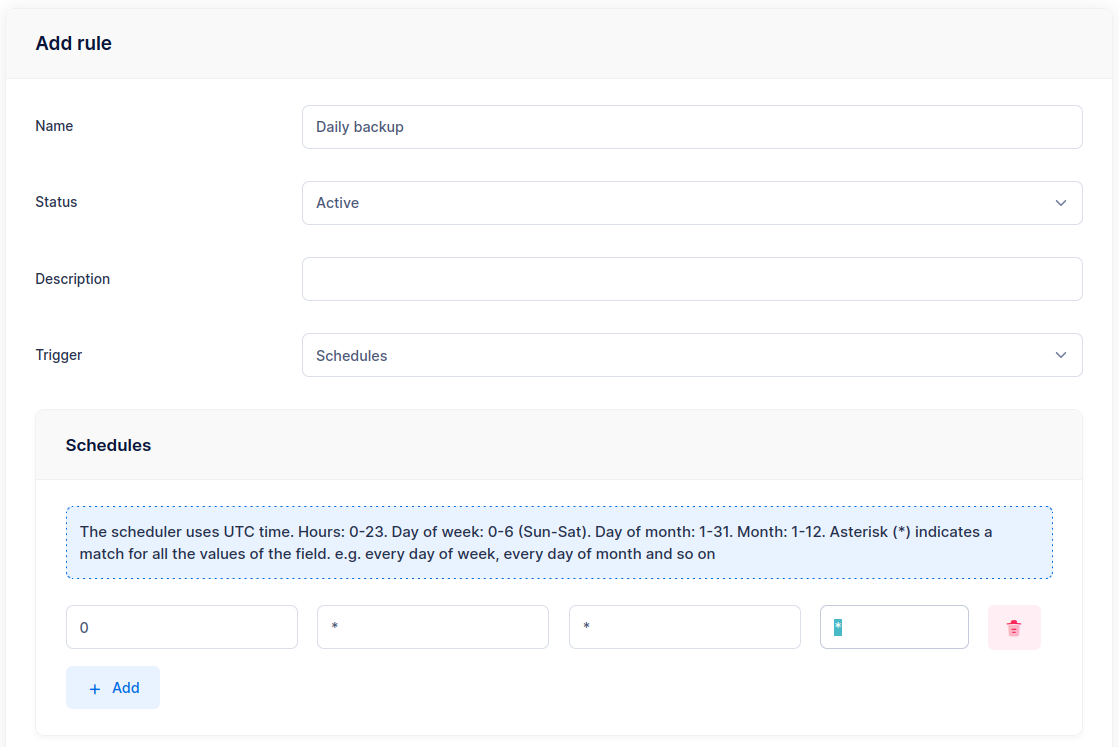
Now select Event rules and create a rule named Daily backup, select Schedule as trigger and schedule a backup at midnight UTC time.
As actions select backup and backup notification.
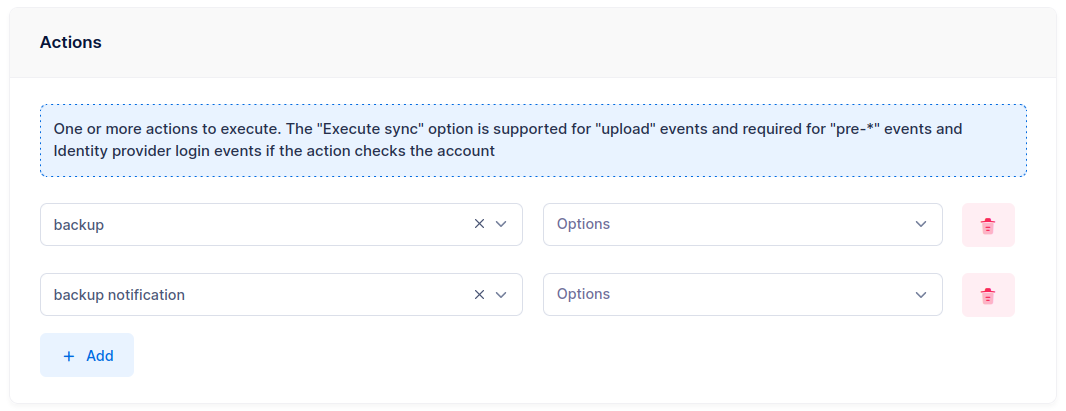
The rule is now active. SFTPGo makes a new backup every day and sends an email with the status of the backup. Backup files are named backup_<week day>_<hour>_<minute>.json.