Upload Notifications and Webhooks
This tutorial covers two common notification use cases:
- Receiving an email notification after each upload.
- Sending detailed event data to an external webhook (HTTP POST) with a custom JSON body.
Email Notifications
Step 1: Create an Email Action
From the WebAdmin, expand the Event Manager section, select Event actions and add a new action.
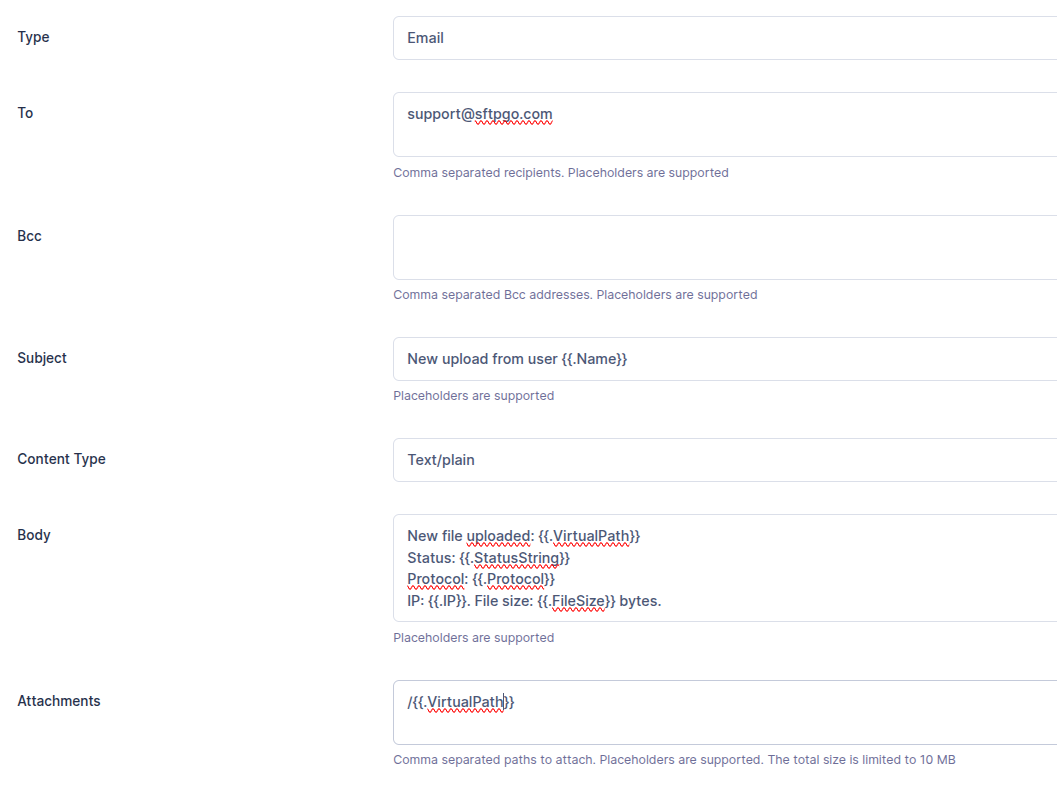
Create an action named upload notification, set the type to Email and fill the recipient/s. Email actions need an SMTP server: configure it from the WebAdmin under Server Manager > Configurations > SMTP, where the settings apply without a restart, or in the SMTP section of the configuration file.
Configure the email fields using placeholders to include dynamic event data:
- Subject:
Upload notification: {{.ObjectName}} - Body:
User {{.Name}} uploaded a file via {{.Protocol}} from {{.IP}}.

File: {{.VirtualPath}}
Size: {{humanizeBytes .FileSize}}
Time: {{.Timestamp.UTC.Format "2006-01-02 15:04:05"}} UTC
Duration: {{.Elapsed}} ms
{{- if .Errors}}
Errors: {{stringJoin .Errors ", "}}
{{- end}}
Key placeholders used:
{{.ObjectName}}— the file name (e.g.,report.csv){{.Name}}— the username who performed the upload{{.VirtualPath}}— the full virtual path (e.g.,/inbound/report.csv){{.Protocol}}— the protocol used (SFTP,FTP,HTTP,WebDAV){{.IP}}— the client IP address{{humanizeBytes .FileSize}}— the file size in human-readable format (e.g.,1.5 MiB){{.Timestamp}}— the event time, with formatting methods like.Format,.UTC,.Unix{{.Elapsed}}— the transfer duration in milliseconds
See the Placeholders & Templates reference for the complete list.
File Attachments
You can attach the uploaded file to the notification email. In the Attachments field, add:
/{{.VirtualPath}}
The path is resolved through the user's virtual filesystem, so it works with all storage backends (local, S3, Azure, GCS, etc.).
 SFTPGo allows a maximum total attachment size of 10 MB. The action will fail for files exceeding this limit. If you need to handle large files, consider using a webhook instead and including a download link.
Step 2: Create an Upload Rule
Now select Event rules and create a rule named Upload rule, select Filesystem events as trigger and upload as filesystem event.
You can also filter events based on protocol, user and group name, filepath shell-like patterns, file size. We omit these additional filters for simplicity.
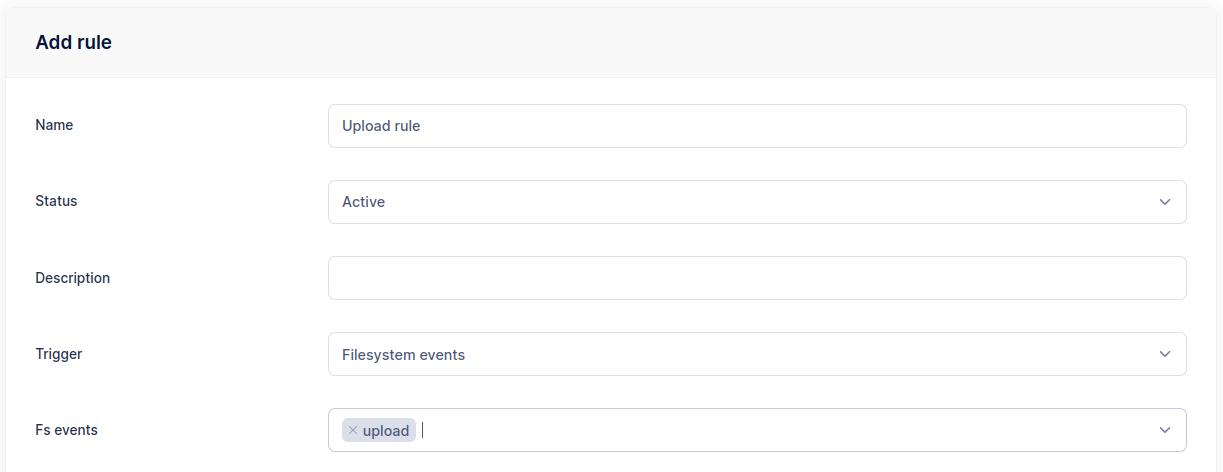
As actions, select upload notification.
The rule is now active. Upload a new file to verify that the configured email notification is delivered.
Webhook Integration
HTTP actions let you send structured event data to external systems — monitoring platforms, SIEM tools, custom applications, or automation pipelines. You have full control over the request body using Go templates.
Step 1: Create an HTTP Action
From the WebAdmin, create a new action named upload webhook, set the type to HTTP.
Configure the following:
- URL: Your webhook endpoint (e.g.,
https://api.example.com/sftpgo/events). - Method: POST (GET, PUT, and DELETE are also supported).
- Headers: Add custom headers for authentication or content type. For example,
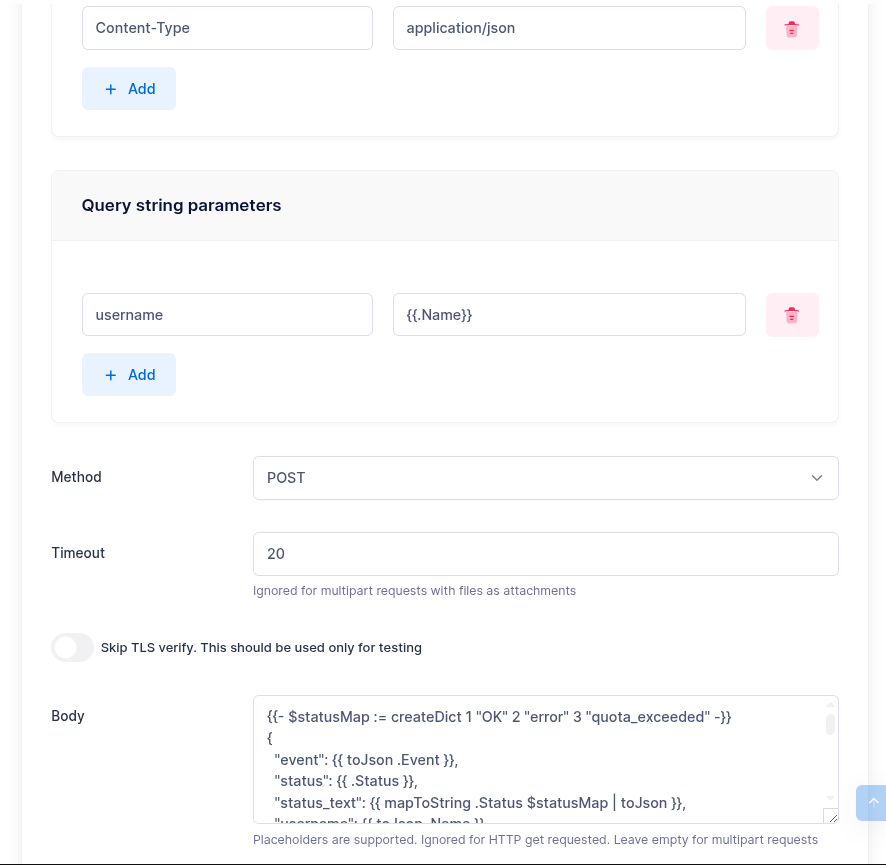
Content-Type: application/jsonandAuthorization: Bearer <token>. Header values support placeholders — e.g., you can use{{.Name}}in a header value. - Query parameters: Add key-value pairs appended to the URL. Values support placeholders — e.g., key
username, value{{.Name}}. Useful for endpoints that expect parameters in the query string rather than the body. - Timeout: Maximum time to wait for a response, in seconds, from 1 to 180.
In the Body field, enter a JSON template. The following example includes most available fields for an upload event:
{{- $statusMap := createDict 1 "OK" 2 "error" 3 "quota_exceeded" -}}
{
  "event": {{ toJson .Event }},
  "status": {{ .Status }},
  "status_text": {{ mapToString .Status $statusMap | toJson }},
  "username": {{ toJson .Name }},
  "role": {{ toJson .Role }},
  "email": {{ toJson .Email }},
  "protocol": {{ toJson .Protocol }},
  "ip_address": {{ toJson .IP }},
  "uid": {{ toJson .UID }},
  "virtual_path": {{ toJson .VirtualPath }},
  "fs_path": {{ toJson .FsPath }},
  "file_name": {{ toJson .ObjectName }},
  "file_size": {{ .FileSize }},
  "file_size_human": {{ humanizeBytes .FileSize | toJson }},
  "elapsed_ms": {{ .Elapsed }},
  "timestamp": "{{ .Timestamp.UTC.Format "2006-01-02T15:04:05Z" }}",
  "errors": {{ toJson .Errors }},
  "metadata": {{ toJson .Metadata }}
}
Template Notes
createDict+mapToString: Maps the integer status code to a human-readable label.toJson: Safely encodes strings (with quoting and escaping) and other types. Always usetoJsonfor string values to handle special characters.humanizeBytes: Converts byte counts to human-readable format (e.g.,10 KiB,1.5 MiB).{{.Metadata}}: Cloud storage metadata (key/value pairs). Empty for local filesystem.{{- ... -}}: The dash trims surrounding whitespace, keeping the output clean.
Step 2: Create an Upload Rule
Create a rule with Filesystem events as trigger and upload as event. Select the upload webhook action.
 For rename and copy events, additional fields are available:
 {{.VirtualTargetPath}} and {{.FsTargetPath}} contain the destination paths.
Multipart Requests with File Attachments
For endpoints that accept file uploads, you can configure the HTTP action as multipart. Add parts for the JSON metadata and the uploaded file:
- Part 1: Name
metadata, Body with the JSON template above. - Part 2: Name
file, File path/{{.VirtualPath}}.
This allows you to send both the event data and the file content in a single request.
Chat platform integrations (Slack, Teams, Discord, Google Chat, Mattermost)
Most chat platforms expose an "incoming webhook" URL that accepts a single HTTP POST with a JSON body. SFTPGo works with all of them — only the body template changes. In every case the HTTP action is configured with method POST, header Content-Type: application/json, and a timeout of 20 seconds is usually enough.
The universal minimum: {"text": "..."}
A one-line JSON body with a text field is the most portable form and the first thing to try. It works on:
- Slack (classic incoming webhooks)
- Microsoft Teams (classic Incoming Webhook connectors — the most common Teams setup)
- Mattermost (Slack-compatible webhooks)
- Google Chat (incoming webhooks)
It does not work on:
- Discord — uses
{"content": "..."}instead of{"text": "..."}. - Teams Workflow / Power Automate webhooks — require the Adaptive Card format.
Minimal body that covers all four compatible platforms at once:
{"text": {{printf "User %s uploaded %s (%s) via %s from %s" .Name .VirtualPath (humanizeBytes .FileSize) .Protocol .IP | toJson}}}
Every user-controlled value ({{.Name}}, {{.VirtualPath}}, {{.IP}}, {{.Errors}}) goes through toJson or toJsonUnquoted to avoid breaking the JSON envelope on quotes, backslashes, or control characters. {{humanizeBytes .FileSize}} emits a plain string like 1.5 MiB and can be dropped in unquoted.
Slack — Block Kit (richer layout)
{
  "blocks": [
    {
      "type": "section",
      "text": {
        "type": "mrkdwn",
        "text": {{printf "*%s* uploaded `%s` (%s) via %s from `%s`" .Name .VirtualPath (humanizeBytes .FileSize) .Protocol .IP | toJson}}
      }
    },
    {
      "type": "context",
      "elements": [
        {"type": "mrkdwn", "text": {{printf "Event UID: %s — %s" .UID (.Timestamp.UTC.Format "2006-01-02T15:04:05Z") | toJson}}}
      ]
    }
  ]
}
Microsoft Teams — MessageCard (classic webhook, richer layout)
Same endpoint as the simple text version (https://<tenant>.webhook.office.com/webhookb2/...), with a structured card instead of plain text.
{
  "@type": "MessageCard",
  "@context": "https://schema.org/extensions",
  "summary": {{printf "Upload by %s" .Name | toJson}},
  "themeColor": "0076D7",
  "title": "SFTPGo upload notification",
  "sections": [{
    "facts": [
      {"name": "User",    "value": {{toJson .Name}}},
      {"name": "File",    "value": {{toJson .VirtualPath}}},
      {"name": "Size",    "value": {{humanizeBytes .FileSize | toJson}}},
      {"name": "Protocol","value": {{toJson .Protocol}}},
      {"name": "IP",      "value": {{toJson .IP}}},
      {"name": "When",    "value": {{(.Timestamp.UTC.Format "2006-01-02 15:04:05 UTC") | toJson}}}
    ],
    "markdown": true
  }]
}
Microsoft Teams — Adaptive Card (Workflow / Power Automate webhook)
Teams webhooks created through Power Automate Workflows require the Adaptive Card schema. A plain {"text": "..."} or MessageCard body will be rejected. You can recognize this flavor by the endpoint URL — it usually lives under *.logic.azure.com or the newer Power Automate webhook format.
{
  "type": "message",
  "attachments": [{
    "contentType": "application/vnd.microsoft.card.adaptive",
    "content": {
      "$schema": "http://adaptivecards.io/schemas/adaptive-card.json",
      "type": "AdaptiveCard",
      "version": "1.4",
      "body": [
        {"type": "TextBlock", "size": "Medium", "weight": "Bolder", "text": "SFTPGo upload"},
        {"type": "FactSet", "facts": [
          {"title": "User",     "value": {{toJson .Name}}},
          {"title": "File",     "value": {{toJson .VirtualPath}}},
          {"title": "Size",     "value": {{humanizeBytes .FileSize | toJson}}},
          {"title": "Protocol", "value": {{toJson .Protocol}}},
          {"title": "IP",       "value": {{toJson .IP}}},
          {"title": "When",     "value": {{(.Timestamp.UTC.Format "2006-01-02 15:04:05 UTC") | toJson}}}
        ]}
      ]
    }
  }]
}
Discord — simple text
Discord uses content, not text. This is the one place where the universal {"text": "..."} body does not apply.
Endpoint form: https://discord.com/api/webhooks/<webhook_id>/<token>
{"content": {{printf "**%s** uploaded `%s` (%s) via %s" .Name .VirtualPath (humanizeBytes .FileSize) .Protocol | toJson}}}
Discord — embed (richer card)
{
  "embeds": [{
    "title": "SFTPGo upload",
    "color": 3447003,
    "fields": [
      {"name": "User",     "value": {{toJson .Name}},                    "inline": true},
      {"name": "Size",     "value": {{humanizeBytes .FileSize | toJson}},"inline": true},
      {"name": "Protocol", "value": {{toJson .Protocol}},                "inline": true},
      {"name": "File",     "value": {{toJson .VirtualPath}},             "inline": false}
    ],
    "timestamp": {{(.Timestamp.UTC.Format "2006-01-02T15:04:05Z") | toJson}}
  }]
}
Mattermost — identity override
Mattermost's built-in webhook is Slack-compatible, so the same {"text": "..."} body works without changes. If you want to override the bot identity, add username and icon_url:
{
  "username": "SFTPGo",
  "icon_url": "https://sftpgo.com/favicon.png",
  "text": {{printf "**%s** uploaded `%s` (%s)" .Name .VirtualPath (humanizeBytes .FileSize) | toJson}}
}
Synchronous vs Asynchronous Execution
By default, webhook actions are asynchronous — the upload completes immediately and the webhook fires in the background. If your endpoint needs to validate the upload and potentially reject it:
- Enable Synchronous execution on the action in the rule.
- If your webhook returns a status outside the 200-204 range, the upload is rejected and the file is removed.
Be mindful of client timeouts — the client waits for the webhook to complete when running synchronously.
Provider Events
Webhooks also work with provider events (user creation, update, deletion, etc.). For provider events, additional fields are available:
{{.Object.JSON}}: The full provider object (user, admin, group, etc.) as JSON.{{.Initiator.Admin.Email}}: The admin who performed the action.{{.ObjectType}}: The type of object (user,admin,group,folder,share, etc.).
Example body for a provider event webhook:
{
  "event": {{ toJson .Event }},
  "object_type": {{ toJson .ObjectType }},
  "object_name": {{ toJson .ObjectName }},
  "object": {{ .Object.JSON }},
  {{- if .Initiator.Admin }}
  "admin": {{ toJson .Initiator.Admin.Email }},
  {{- end }}
  "timestamp": "{{ .Timestamp.UTC.Format "2006-01-02T15:04:05Z" }}"
}