Virtual Folders Integration
Virtual folders can be used as the target of Event Manager actions, so that files can be copied to a storage location the triggering user cannot reach: another directory of the same backend, outside the user's security context, or an external server or cloud storage provider. These actions are triggered by filesystem events, such as uploads, or by schedules, and are configured entirely from the WebAdmin UI.
The following scenarios describe two typical configurations.
Scenario 1: Cross-User File Copy (Same Backend)
We have two users on the same S3 storage:
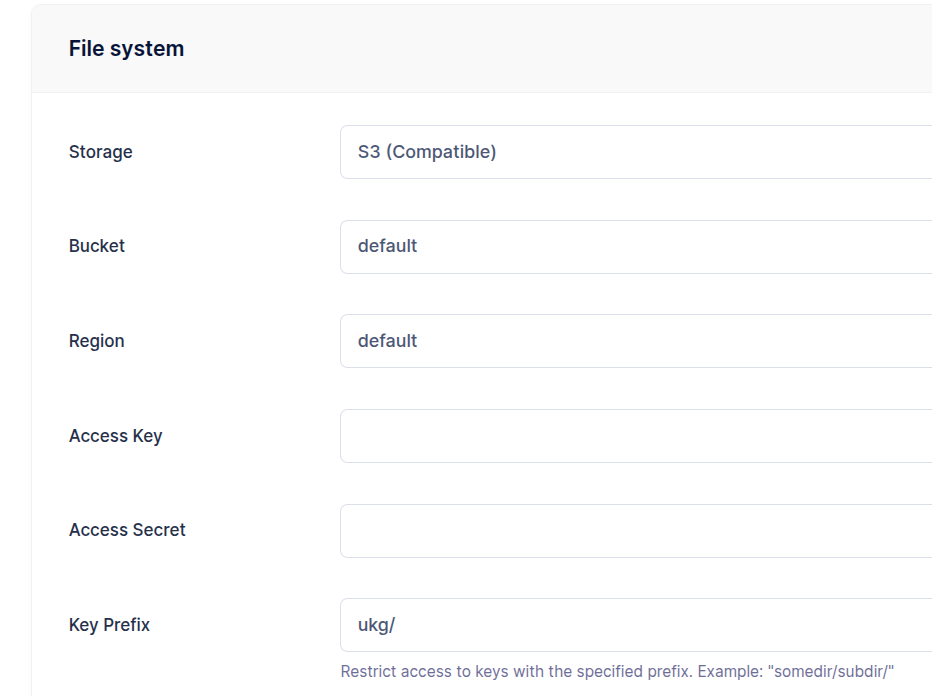
- The user
ukghas the key prefix set toukg/so it can only access this folder.
- The user
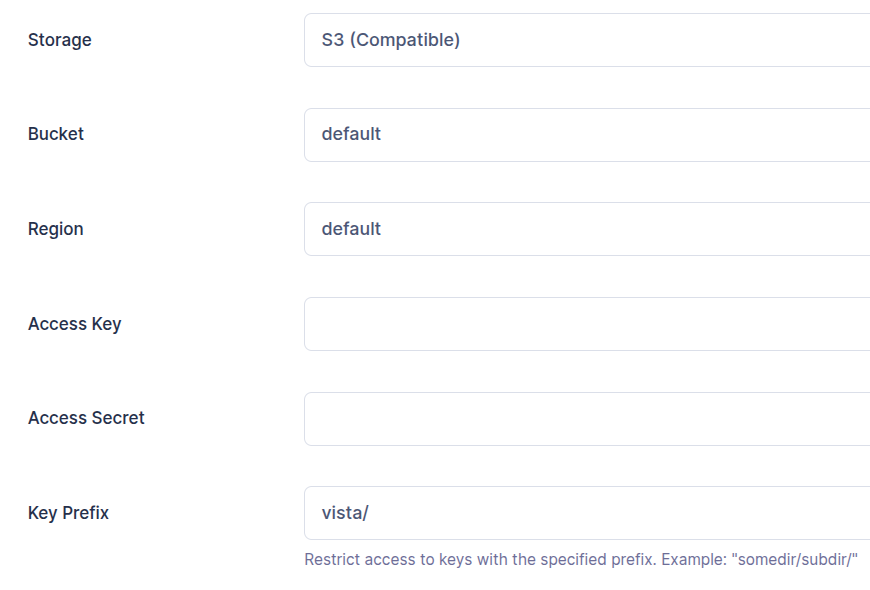
vistahas the key prefix set tovista/so it can only access this folder.
Each time the user ukg uploads files to the /inbound folder that:
- start with
vista_, and - end with
.csv
we want to automatically copy those files to the /outbound folder of the user vista.
By default, actions are executed within the security context of the user who performed the upload. Since the user ukg is restricted to their own directory and cannot access the vista user's folder, this operation would normally be blocked.
To support this use case, we define a virtual folder with permissions to access the vista user's directory. The copy action is then configured to use this virtual folder as the destination.
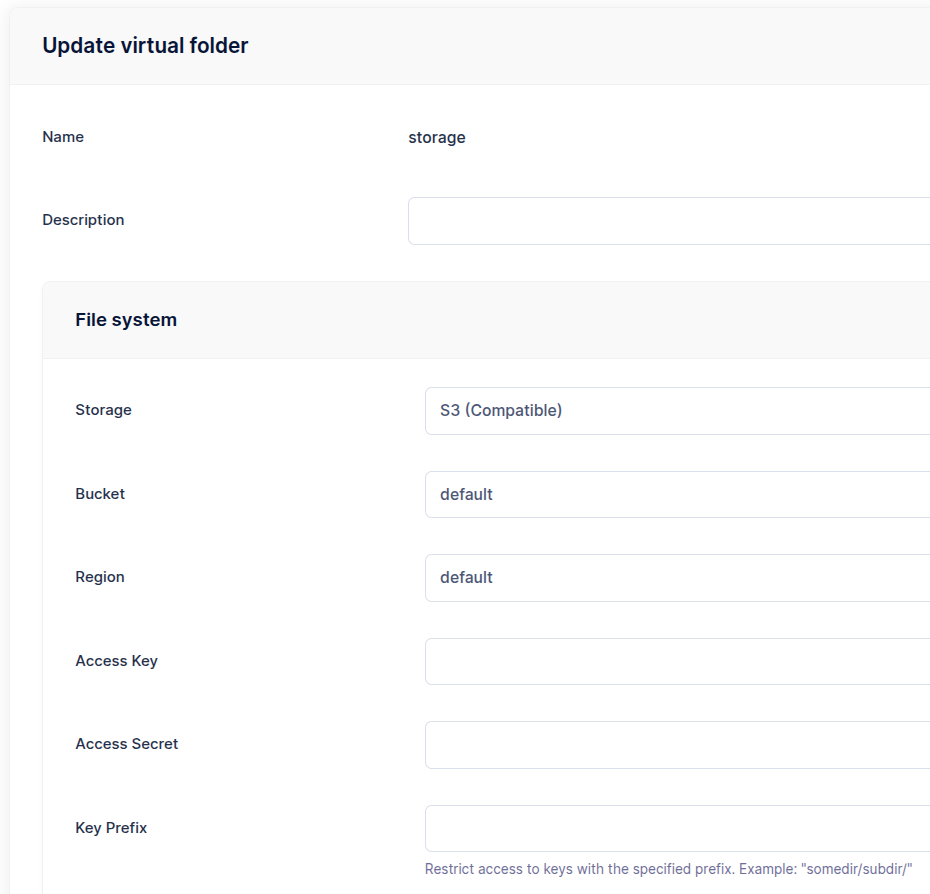
Step 1: Create a Storage Folder
Create a folder named storage without setting a key prefix. This gives the folder visibility over the entire storage and allows it to be reused for other actions. If needed, you can also assign a key prefix to restrict access to a specific portion of the storage.
Step 2: Create a Copy Action
In the Event Manager section, create a new action of type Filesystem and choose Copy as the action type.
Set the source path to /inbound/{{.ObjectName}} and the target path to /vista/outbound/{{.ObjectName}}.
Finally, select storage as the target folder.
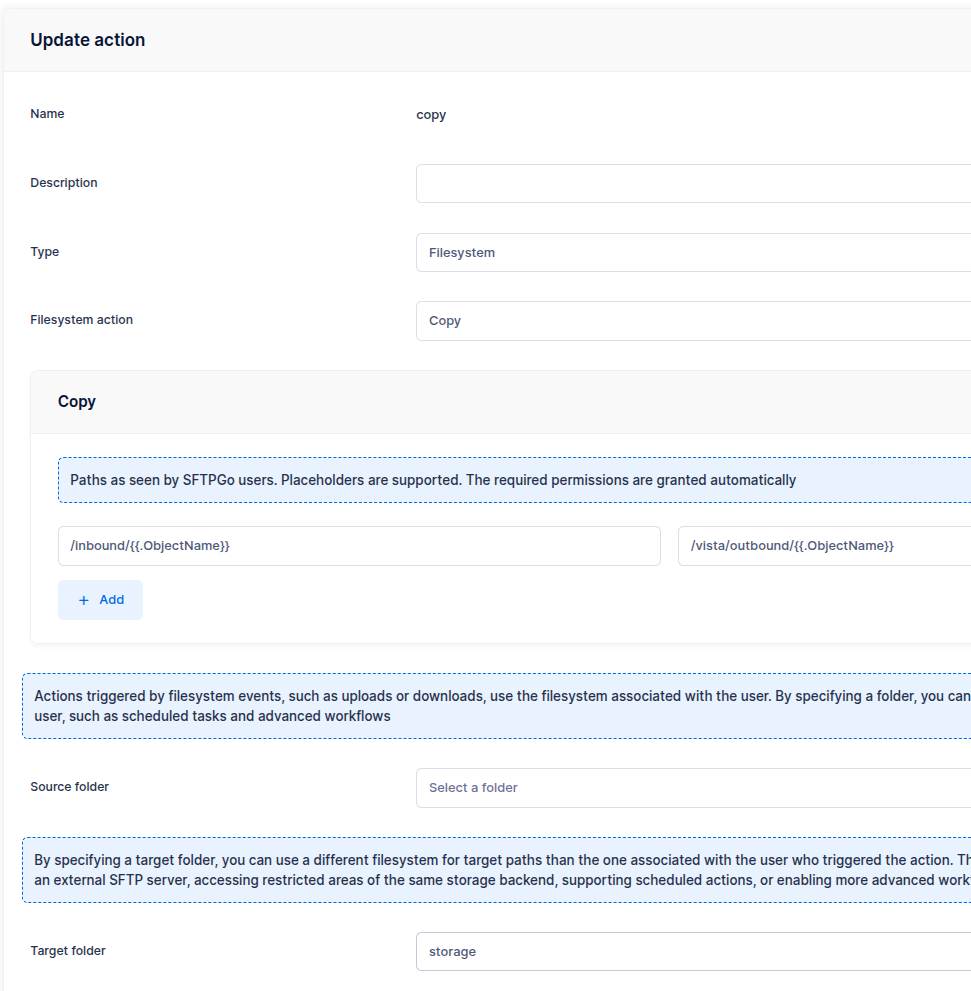
The configuration resolves as follows:
- The source path is set to
/inbound/{{.ObjectName}}. The placeholder{{.ObjectName}}is replaced with the file name — for example, if a file is uploaded to/inbound/test.csv, it becomestest.csv. Alternatively, you can use the more generic{{.VirtualPath}}placeholder, which would resolve to/inbound/test.csvin the same scenario. - The target folder is set to
storage, so the target path is relative to that folder. - The target path is
/vista/outbound/{{.ObjectName}}. This means that if the userukguploads the file/inbound/test.csv, it will be copied to/vista/outbound/test.csv.
 All paths are relative. For example, if the storage folder had a key prefix set to
 vista/, the correct target path would be /outbound/{{.ObjectName}} instead.
Step 3: Create a Rule
Define a rule to execute this action after each upload.
Set Filesystem events as trigger and upload as event.
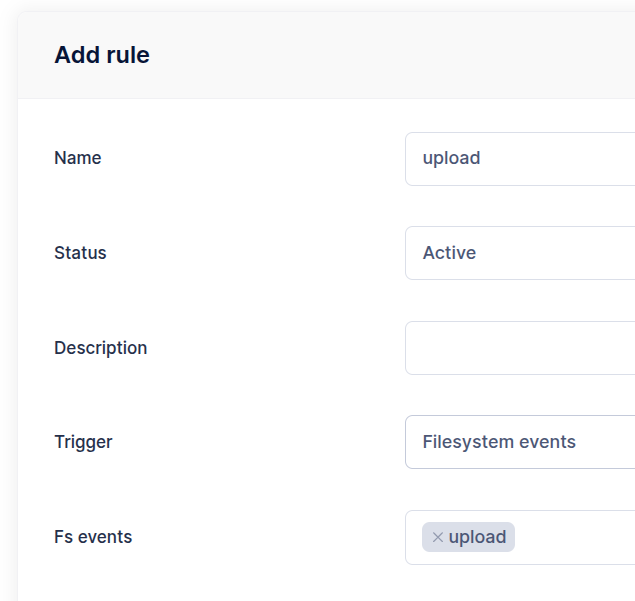
In the Name filters section, you can restrict which users the rule applies to. In this case, we specify ukg, but you can also define multiple users or patterns — for example, user* matches all usernames that start with user.
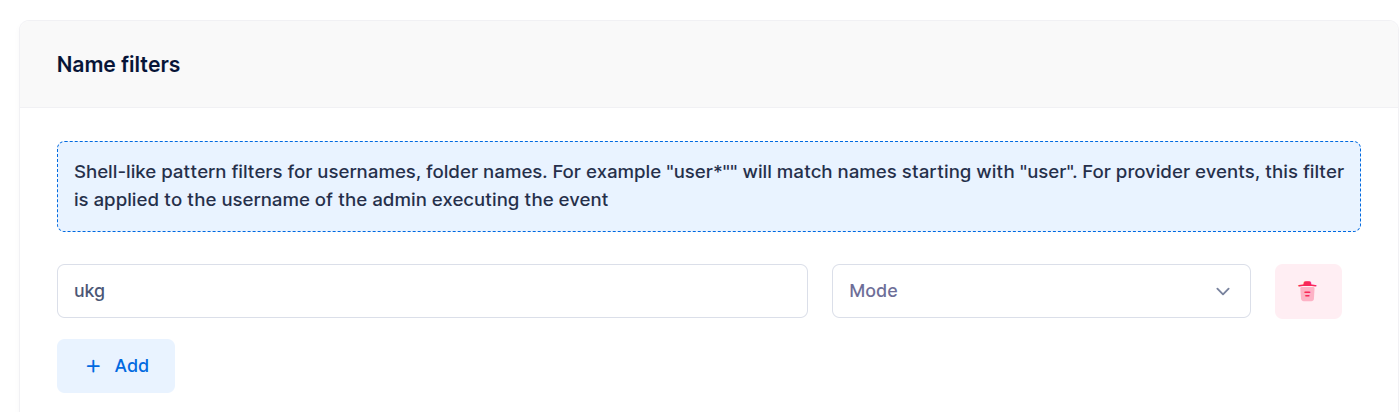
Similar filters can be applied based on groups or roles as well.
We also want to restrict the rule to files uploaded to the /inbound folder that start with vista_ and end with .csv. To do this, configure the path filter /inbound/vista_*.csv.
Several path filters are alternatives: a path matching any of them triggers the rule. Two filters /inbound/vista_* and /inbound/*.csv would also match /inbound/vista_report.txt.
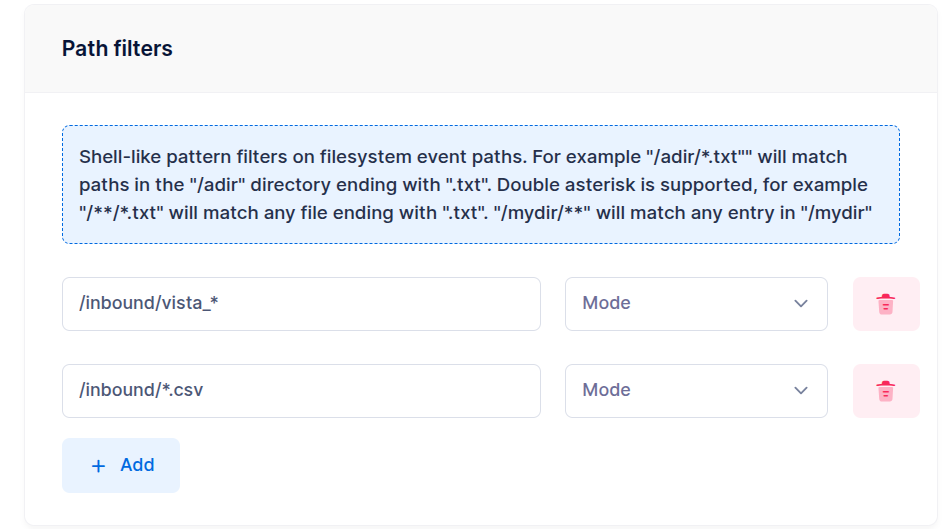
Note that these are virtual paths, relative to the user's home directory. You can also filter on the filesystem path if you need to match by physical storage location.
Finally select the copy action and save the rule.
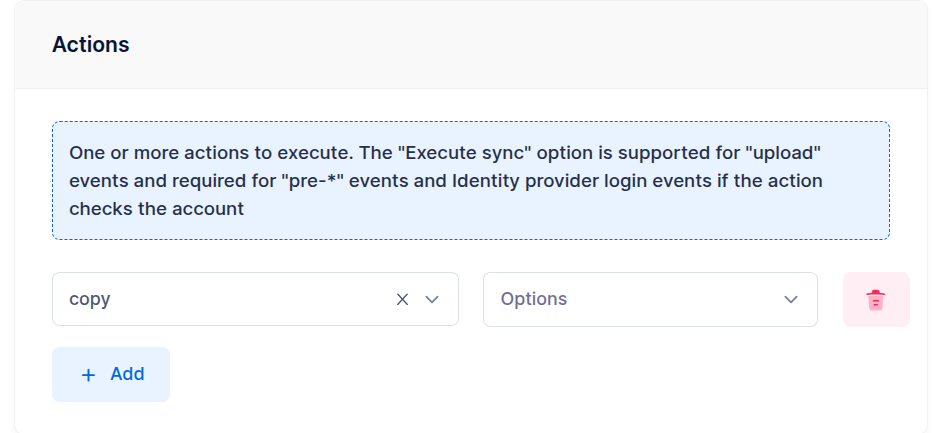
Upload some test files to verify that the rule behaves as expected:
- Files uploaded outside of
/inbound=> the action is not triggered. - Files in
/inboundwith the correct prefix and extension => the action is triggered. - Files in
/inboundwith a.txtextension => the action is not triggered. - Files in a subdirectory such as
/inbound/subdir, even with the correct prefix and extension => the action is not triggered, because the configured patterns do not use the double asterisk syntax required to match subdirectories.
Virtual Path vs Filesystem Path Filters
By default, rule path patterns match against the virtual path — the path as seen by the user, for example /inbound/vista_report.csv.
However, you can also configure individual patterns to match against the filesystem path — the actual storage location. This is useful when you need to filter based on the physical backend, for example:
| Backend | Example filesystem path |
|---|---|
| Local (Linux) | /home/sftpgo/ukg/inbound/vista_report.csv |
| S3 | ukg/inbound/vista_report.csv |
| Azure Blob | ukg/inbound/vista_report.csv |
| GCS | ukg/inbound/vista_report.csv |
For cloud storage backends, the filesystem path is the object key (key prefix + relative path) — it does not include the bucket or container name. For instance, if two users share the same S3 bucket but have different key prefixes (ukg/ and vista/), you can use a filesystem path pattern like ukg/** to match only files under the ukg prefix regardless of the virtual path structure.
Cloud storage paths have no leading slash, so use prefix/** rather than /prefix/**. Always use forward slashes, even for Windows paths. See Path filters for full details.
Scenario 2: Copy to External SFTP Server
Each time the user vista uploads files with .csv or .xml extensions to the /inbound folder, we want to automatically transfer these files to the /push directory on an external SFTP server.
The configuration is similar to Scenario 1: a copy action and a target folder that uses the external SFTP server as storage backend.
Step 1: Create an SFTP Folder
Create a folder that is backed by the remote SFTP server.
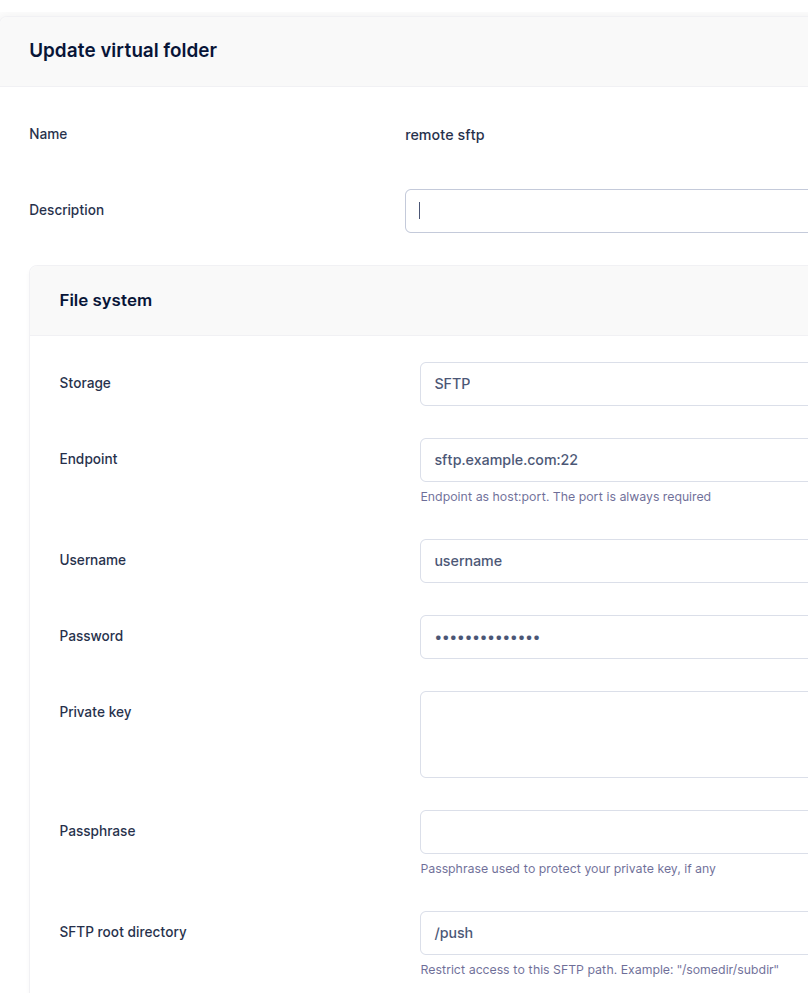
In this example the SFTP root directory is set to /push, which restricts the folder's access to that directory. As a result, the target paths defined in the copy action are relative to /push.
Step 2: Create a Copy Action
For the action configuration:
- Set the source path to
/{{.VirtualPath}}. - Set the target path to
/{{.ObjectName}}. Since the SFTP folder uses/pushas its root directory, this path is relative to/push.
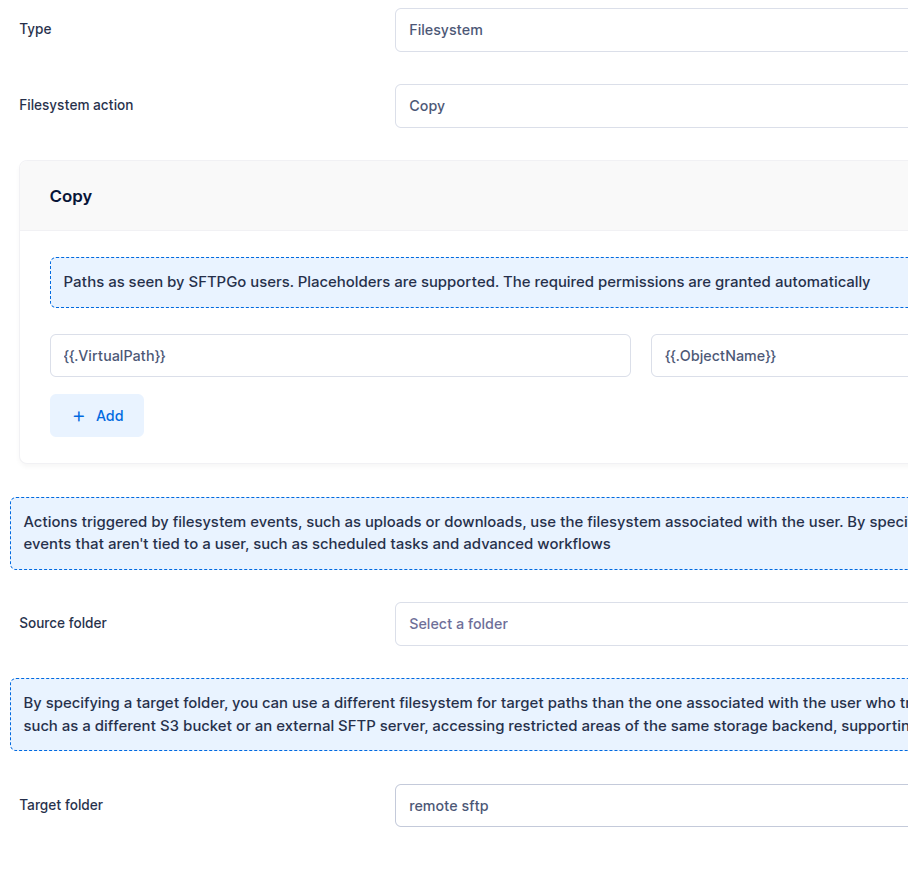
The push folder must already exist on the remote SFTP server for the action to succeed.
Step 3: Create a Rule
For the rule:
- Use
vistaas name filter so that the action will be executed only for this user. - Use
/inbound/*.csvand/inbound/*.xmlas path filters to limit the execution to these file extensions. - Select
sftp copyas the action.
Upload some test files to verify that the rule behaves as expected.