Installation
SFTPGo is compatible with Linux, Windows, macOS, and FreeBSD. Other BSD variants are likely to work as well, and the software can run on a wide range of systems—from small embedded devices to large-scale Kubernetes clusters.
The Enterprise edition is officially distributed and supported for Linux and Windows platforms, and is also available as a Docker image or through a Helm chart.
A fully managed SaaS offering is also available for organizations that prefer not to manage their own infrastructure.
 Note: Only the installation methods explicitly documented here provide access to SFTPGo Enterprise.
Community distributions, including unofficial Docker images and pre-packaged solutions from third-party platforms, even if offered as paid services, provide the open-source edition of SFTPGo.
These versions do not include Enterprise features and are not supported by the SFTPGo team.
Note: Only the installation methods explicitly documented here provide access to SFTPGo Enterprise.
Community distributions, including unofficial Docker images and pre-packaged solutions from third-party platforms, even if offered as paid services, provide the open-source edition of SFTPGo.
These versions do not include Enterprise features and are not supported by the SFTPGo team.
Requirements
The only (optional) requirement is a suitable SQL server to use as data provider:
- upstream supported versions of PostgreSQL, MySQL and MariaDB.
- CockroachDB stable.
You can remove this requirement by using an embedded SQLite, bolt or in memory data provider.
Commercial Marketplaces
SFTPGo Enterprise is available on the main cloud marketplaces as pre-configured instances. The instances ship with default settings that can be adjusted to match your requirements.
Marketplace offerings are available in plans that correspond to our Starter and Premium on-premises tiers. For advanced requirements, a private offer can be arranged to provide the full capabilities of the Ultimate tier.
Pricing and licensing. All marketplace listings — both Enterprise and open-source-based — are billed entirely through the cloud provider; there is no separate fee from SFTPGo on top of the marketplace charge. The Enterprise listings include an activated SFTPGo Enterprise license: nothing else to purchase or activate. The open-source-based listings ship the SFTPGo Open Source edition (AGPLv3) and do not enable Enterprise features — to access those, switch to one of the Enterprise listings.
AWS
SFTPGo Enterprise offerings on AWS Marketplace:
- SFTPGo Enterprise - Starter
- SFTPGo Enterprise - Premium
- SFTPGo Enterprise - Starter (arm64)
- SFTPGo Enterprise - Premium (arm64)
- SFTPGo Enterprise - Container
We also offer open-source-based marketplace listings that remain fully supported. We recommend migrating to the Enterprise edition for improved performance and additional features. You can view all supported offerings using the links below.
Azure
SFTPGo Enterprise offerings on Azure Marketplace:
Open-source-based listings are also available:
Google Cloud
SFTPGo Enterprise offerings on Google Cloud Marketplace:
What is preconfigured on marketplace offerings
Marketplace instances are ready to use. They ship with:
- License key already activated. The license is tied to your marketplace subscription — no separate activation step is required.
- Audit logs plugin enabled by default, on both the Starter and the Premium tiers. The audit plugin records every administrative and user action; events are browsable from the WebAdmin under Maintenance => Audit Logs and queryable via the REST API.
- In-memory transfer pipes enabled (
SFTPGO_HOOK__MEMORY_PIPES__ENABLED=1). This lets cloud-backend users (S3, GCS, Azure Blob) upload without needing a writable local scratch area, which matters on minimal VM images and container runtimes. - Data provider preconfigured for standalone use. The storage layer and the plugin event databases are supported and initialized on first boot — you do not need to stand up a separate database service. If you require high availability, point the data provider at a managed or clustered database of your choice.
Operating system. AWS AMIs (both x86_64 and arm64) are based on Amazon Linux 2023 (RHEL-based; package manager dnf). Azure and Google Cloud Linux VM images are based on Debian 13 (apt-based).
Plugin slots by tier. The Starter tier is limited to 2 active plugins in total. The audit logs feature is implemented as two plugins (eventstore + eventsearcher) wired together — both must be loaded for it to work — so on Starter the audit-logs feature already fills both slots, and there is no spare slot for an additional plugin without disabling audit logs. Adding more plugins on Starter requires either upgrading to Premium (unlimited plugins) or disabling the audit plugins to free their slots. Premium and higher tiers have no plugin limit.
Making changes. All marketplace defaults are standard SFTPGo settings and can be overridden with the usual mechanisms — WebAdmin configuration pages, environment variables (see Environment variables), or drop-in env files under the config directory.
Updating marketplace instances
Marketplace VM offerings stay current through the distribution's standard package manager — both the operating system and SFTPGo are updated through that channel. No bespoke update procedure is required.
Amazon Linux (AWS AMIs):
sudo dnf update
Debian (Azure / Google Cloud VMs):
sudo apt update && sudo apt upgrade
The SFTPGo service is restarted automatically by the package's post-install scriptlet when the sftpgo package is upgraded.
To verify that the SFTPGo OS package matches the latest available:
sudo dnf check-update sftpgo                # AWS
apt list --upgradable 2>/dev/null | grep sftpgo   # Azure / GCP
Marketplace offerings hide the SFTPGo version in the WebAdmin by default. To check it, use sftpgo --version from the CLI, or read the starting SFTPGo v2.7.x ... line written to the log at service startup (journalctl -u sftpgo or the configured log file).
For container-based marketplace listings the update procedure depends on the offering: the AWS Container listing distributes its images through the AWS marketplace registry and is updated by deploying the new image version published by the listing; the Azure AKS listing is a CNAB bundle and is upgraded through its CNAB mechanism. Follow the procedure documented on the relevant marketplace listing page.
Linux, Windows, Docker
SFTPGo Enterprise can be installed on Linux, Windows, and in containerized environments using Docker.
- APT and YUM repositories are available for Debian-based and RHEL-based distributions.
- Windows installers are provided for direct setup on Windows systems.
- A Docker registry is available.
A license key is required to enable advanced features and to access our Docker repository. Licenses can be purchased or a free trial activated directly from our website.
Without a valid license, the application runs in limited mode with the following restrictions:
- Concurrent transfers capped at 2.
- Storage limited to the local filesystem.
- Plugins disabled.
APT repo
Supported distributions:
- Debian 11 "bullseye"
- Debian 12 "bookworm"
- Debian 13 "trixie"
- Ubuntu 20.04 "focal"
- Ubuntu 22.04 "jammy"
- Ubuntu 24.04 "noble"
- Ubuntu 26.04 "resolute"
Import the public key used by the package management system:
curl -sS https://download.sftpgo.com/apt/gpg.key | sudo gpg --dearmor -o /usr/share/keyrings/sftpgo-archive-keyring.gpg
If you receive an error indicating that gnupg is not installed, you can install it using the following command:
sudo apt install gnupg
Create the SFTPGo source list file:
CODENAME=`lsb_release -c -s`
echo "deb [signed-by=/usr/share/keyrings/sftpgo-archive-keyring.gpg] https://download.sftpgo.com/apt ${CODENAME} main" | sudo tee /etc/apt/sources.list.d/sftpgo.list
Reload the package database and install SFTPGo:
sudo apt update
sudo apt install sftpgo
For a FIPS 140-3 build, install the sftpgo-fips package instead, and sftpgo-plugins-fips for the bundled plugins:
sudo apt install sftpgo-fips sftpgo-plugins-fips
Yum repo
The YUM repository can be used on generic Red Hat based distributions as well as on SUSE/openSUSE.
Red Hat based distributions
Create the SFTPGo repository:
ARCH=`uname -m`
curl -sS https://download.sftpgo.com/yum/${ARCH}/sftpgo.repo | sudo tee /etc/yum.repos.d/sftpgo.repo
Reload the package database and install SFTPGo:
sudo yum update
sudo yum install sftpgo
For a FIPS 140-3 build, install sftpgo-fips (and sftpgo-plugins-fips for the bundled plugins) instead of sftpgo.
Start the SFTPGo service and enable it to start at system boot:
sudo systemctl start sftpgo
sudo systemctl enable sftpgo
Suse/OpenSUSE
Import the public key used by the package management system:
sudo rpm --import https://download.sftpgo.com/yum/gpg.key
Add the SFTPGo repository:
ARCH=`uname -m`
sudo zypper addrepo -f "https://download.sftpgo.com/yum/${ARCH}" sftpgo
Reload the package database and install SFTPGo:
sudo zypper refresh
sudo zypper install sftpgo
Start the SFTPGo service and enable it to start at system boot:
sudo systemctl start sftpgo
sudo systemctl enable sftpgo
Windows
You can download the latest Windows installer using this link. The installer includes the plugins and will automatically register SFTPGo as a Windows service, starting it immediately after installation. Alternatively, SFTPGo can also be installed using winget with the following command: winget install -e --id drakkan.SFTPGoEnterprise.
For a FIPS 140-3 build, download the FIPS installer instead.
By default, the service runs under the Local System account. However, you can configure it to run under a different user account either through the built-in Windows Services UI or via the command line, as shown below:
C:\Program Files\SFTPGo>sftpgo.exe service uninstall
C:\Program Files\SFTPGo>sftpgo.exe service install -c "C:\ProgramData\SFTPGo Enterprise" -l "logs\sftpgo.log" --service-user "DOMAIN\username" --service-password password
A dedicated account needs modify access to the data directory, C:\ProgramData\SFTPGo Enterprise by default, which holds the configuration, the SQLite database, the logs, the backups and the certificates, in addition to access to the configured home directories. Grant it with inheritance so that files created by future updates are covered too:
icacls "C:\ProgramData\SFTPGo Enterprise" /grant "DOMAIN\username:(OI)(CI)M"
The installer registers SFTPGo as a Windows service only during the initial installation. Future updates will not modify the existing service configuration or the permissions set on the data directory.
To install on systems without a GUI (e.g., Windows Server Core), run the installer with the following flag:
sftpgo_windows_x86_64.exe /VERYSILENT
No progress or confirmation will be shown during installation. To confirm it completed successfully, check that the Windows service was registered:
Get-Service -Name "sftpgo"
The installer is built with Inno Setup. For a full list of supported command-line options, see the official documentation.
Docker
For setup instructions, image details, and access to our Docker registry, please refer to the dedicated Docker page.
Service account
Run the service with the least privileges it needs: access to the configured home directories and to its own data, and nothing else.
The Linux packages register SFTPGo as a systemd service running under the dedicated, unprivileged sftpgo account, which owns the packaged data directories; on Windows the service runs as LOCAL SYSTEM unless a different identity is set, as described above.
Running SFTPGo under a privileged account is supported and a few deployments need it, for example to set per-user ownership on uploaded files on Unix-like systems. File operations, hooks, command actions and plugins then run with the privileges of that account.
SFTPGo is a single process and does not switch to an operating system user per connection: the permissions granted to the SFTPGo user are the boundary between clients, and the operating system enforces no boundary of its own. A privileged service account widens what the service can reach and leaves that boundary as the only one, so provision the home directories and the paths leading to them as described in Local filesystem.
The chmod and chown permissions, both part of the default * set, need attention in this setup. On Unix-like systems a client holding them can set any mode, setuid included, and any owner on the files of its own tree: where those clients can also execute files, this amounts to acting as the service account. Under an unprivileged account the chown fails and a setuid bit confers no more than that account. On Windows the mode maps to the read-only attribute and ownership is left untouched.
Where a privileged account is required, apply one of these mitigations:
- remove
chmodandchownfrom the permissions of the users: the requests are refused - set
setstat_modeto1in thecommonsection of the configuration: requests to change mode, owner and times are accepted and ignored, which suits clients that send them on every upload - on Unix-like systems, mount the filesystem that holds the home directories with
nosuid: a setuid bit on a file grants nothing when the file is executed, however the bit was set
SFTPGo logs a warning at startup when it runs as root.
Adding a license key
You can view your license status and add a new license key from the WebAdmin UI by navigating to Server Manager => License.
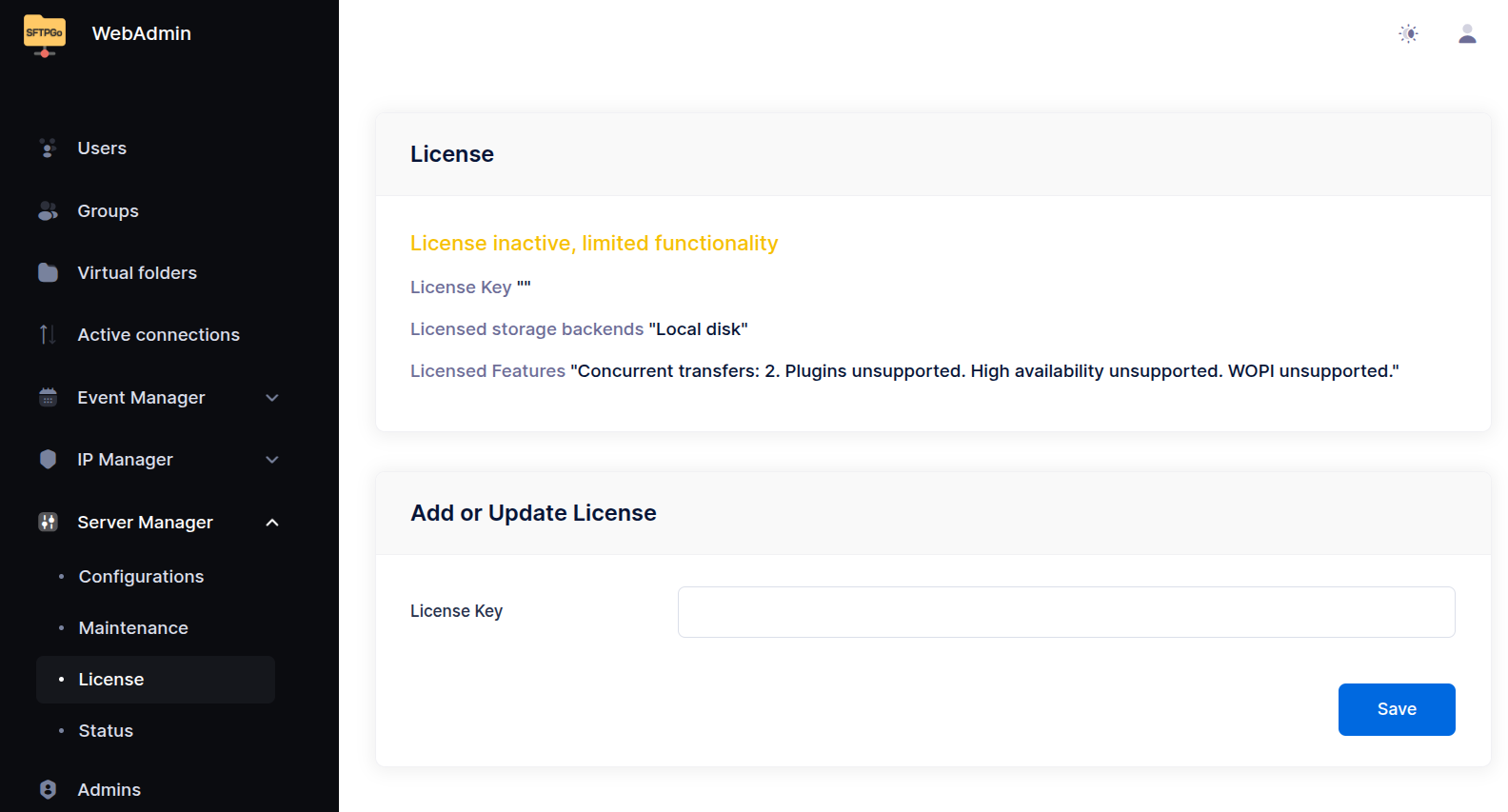
For unattended or CLI-based setups, the license key can also be activated by setting the SFTPGO_LICENSE_KEY environment variable.
SFTPGO_LICENSE_KEY=XXXX-XXXX-XXXX-XXXX