Automatic Folder Structure
This tutorial shows how to automatically create a predefined folder structure whenever a new user is provisioned. This is useful for enforcing a consistent directory layout across all users — for example, dedicated in and out directories for file exchange workflows.
Goal
When a new user is added, automatically create the folders /in and /out in their home directory. If the creation fails, send an email notification to the administrator.
Step 1: Create a Filesystem Action
From the WebAdmin, expand the Event Manager section, select Event actions and add a new action.
Create an action named create dirs, set the type to Filesystem, choose Create directories as the filesystem action, and add the paths /in and /out.
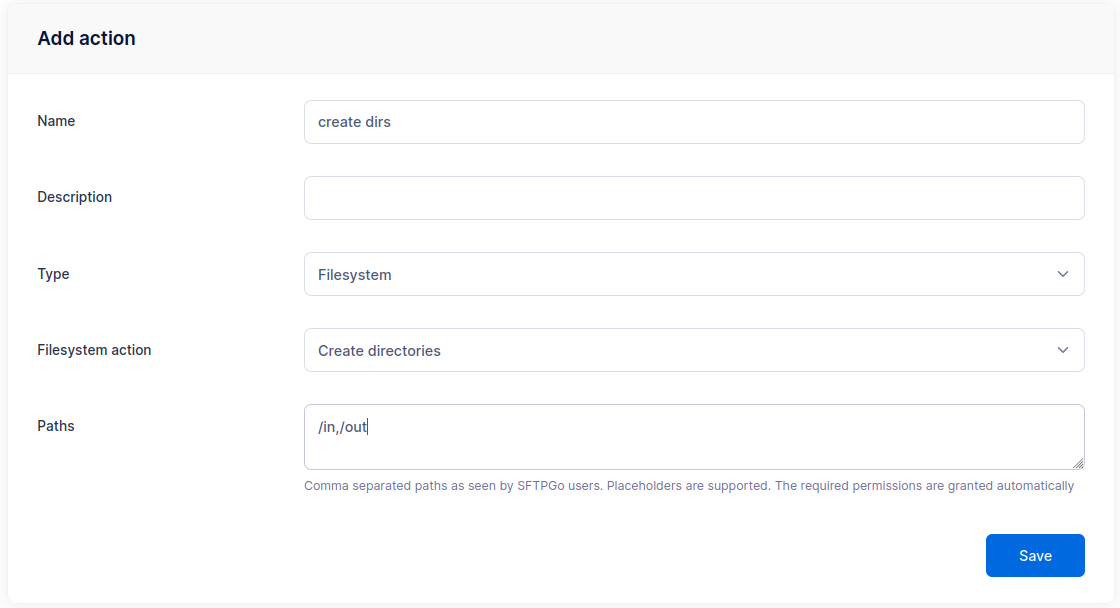
You can add as many directories as needed — they are created recursively (equivalent to mkdir -p), so intermediate directories are handled automatically.
Step 2: Create a Failure Notification Action
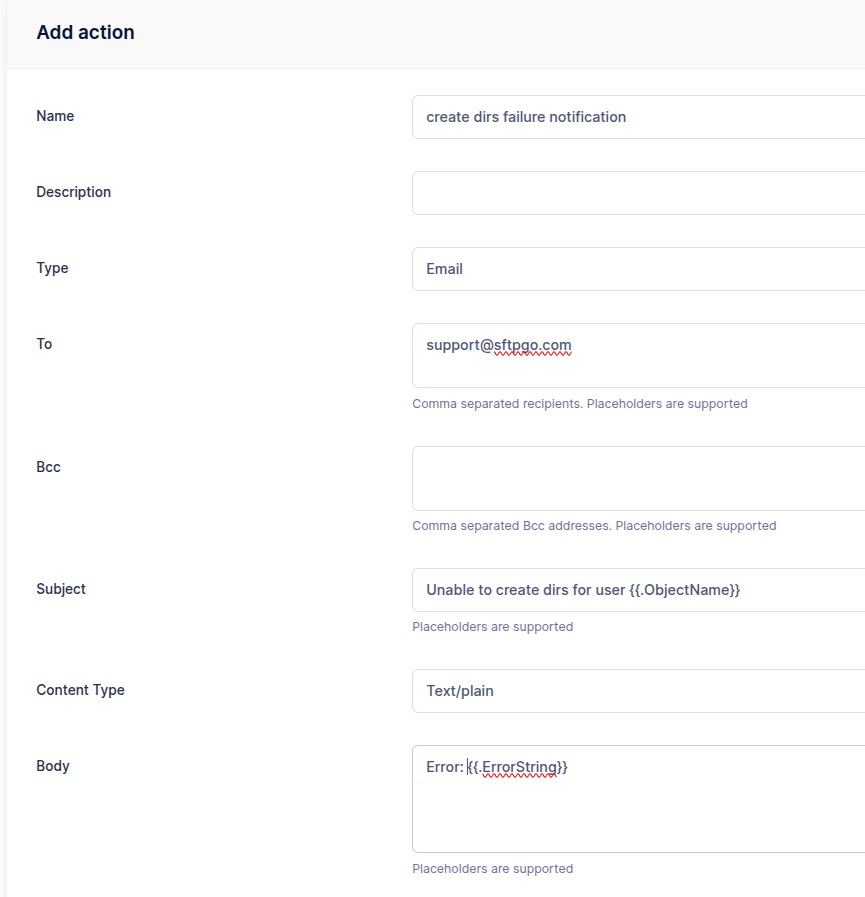
Create a second action named create dirs failure notification, set the type to Email and configure the recipients.
- Subject:
Unable to create dirs for user {{.ObjectName}} - Body:
Errors: {{ stringJoin .Errors ", " }}
The {{.ObjectName}} placeholder resolves to the username of the newly created user.
Step 3: Create a Provider Event Rule
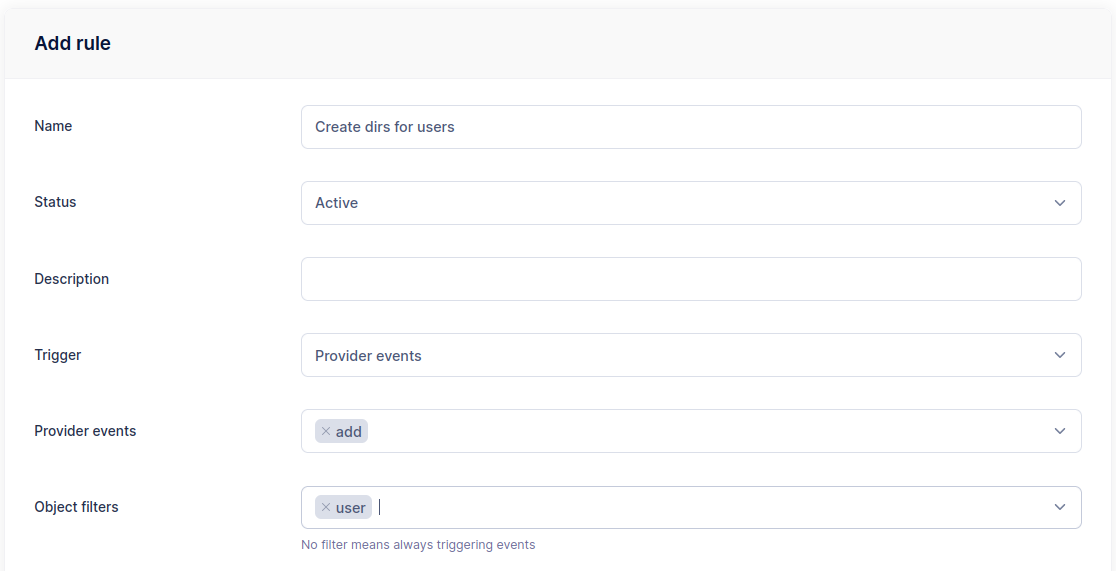
Select Event rules and create a rule named Create dirs for users.
- Trigger: Provider event
- Provider events:
add - Object filters:
user
As actions, select create dirs and create dirs failure notification. Mark the notification action as Is failure action — this way, the email is sent only when the directory creation fails.
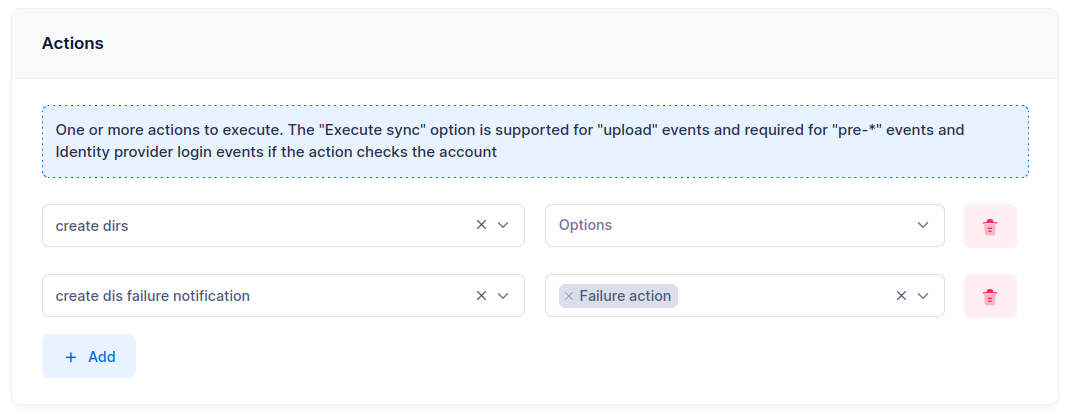
The rule is now active. Create a new user and verify that the /in and /out directories are created in their home directory.